
What’s New
Admin can:
- View a roll-up of all Media & Docs for a Customer, directly from the Customer profile. And, upload new media (photos and documents) directly from the Customer profile.
How It Works
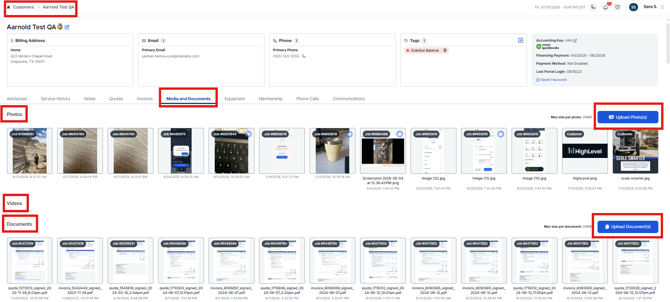
From the Admin Portal, locate a Customer profile and select the newly created Media and Documents tab. Here, you will see a rollup of all media (organized by Photos, Videos, and Documents) and you'll see the ability to Upload Photos and Upload Documents at the Customer Level.
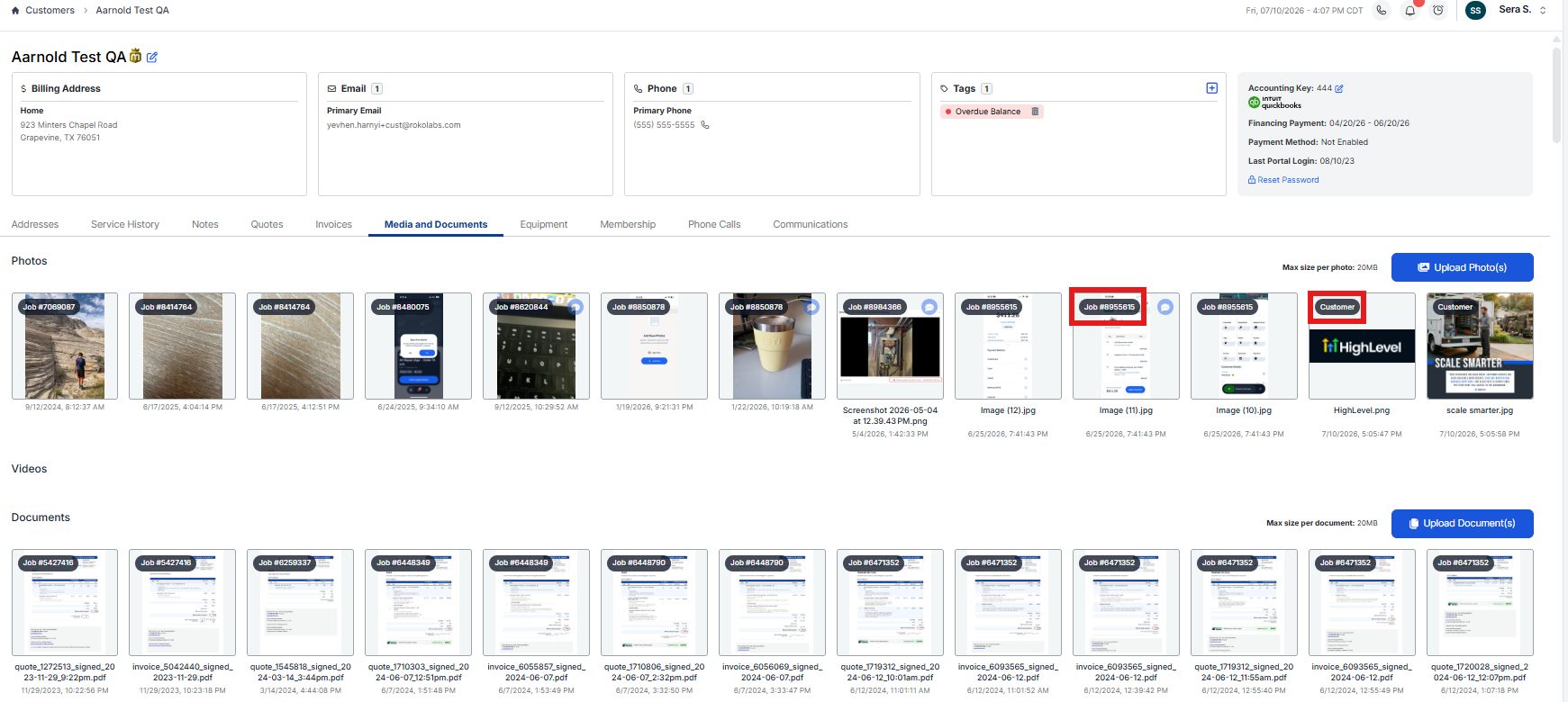
Existing images that are tied to specific jobs, will have a Job badge in the top left corner. Any Photos or Documents added to be tagged at the Customer-level will have a Customer badge in the top left corner of the image.
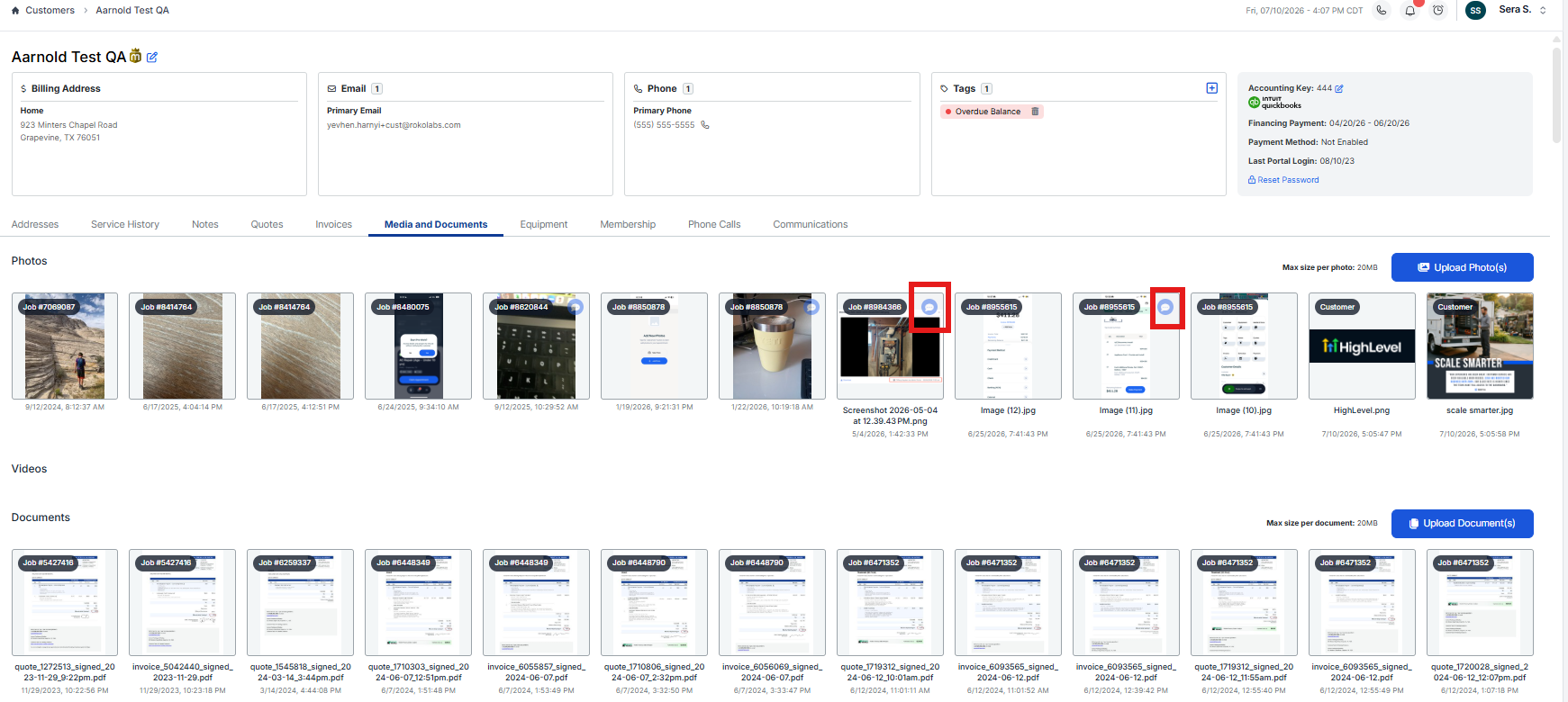
The Captions icon is present on any media that has captions added, and clicking into the media allows you to view and edit these captions and/or add new captions if they do not exist and are helpful.
Hovering over each image also gives the ability to mark as customer visible (or hide), edit to add a caption, or delete the image.