Where to Locate
In the Admin Portal, locate any job that has been completed. You can do this via the Customer profile and/or by going to Dispatch > All Jobs and filtering for a specific appointment.
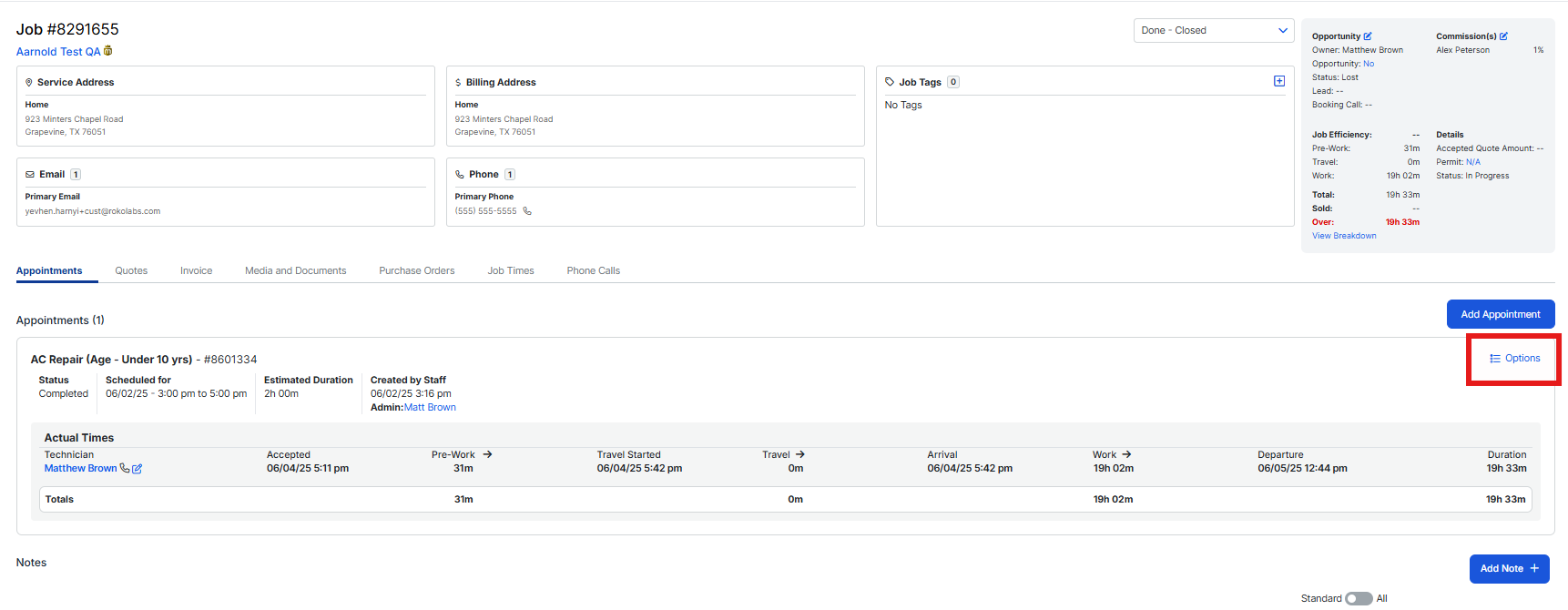
Open the appointment and locate the Options button on the right side of your screen.
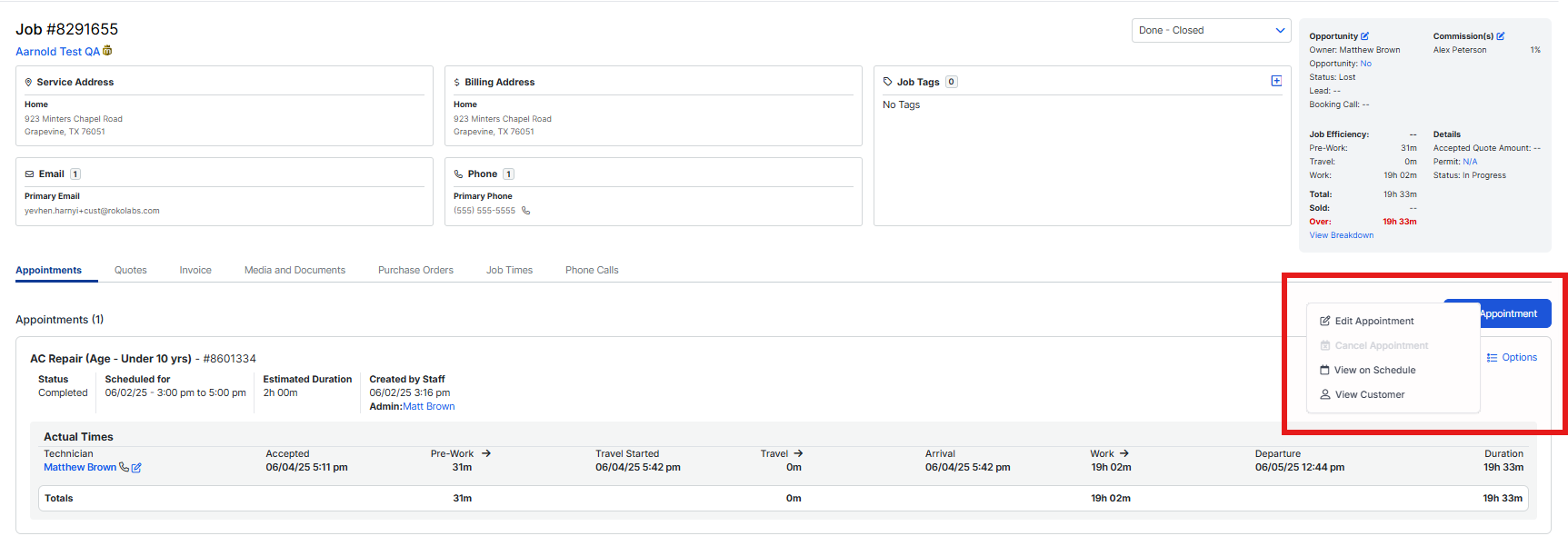
When you click Options, you'll see a series of additional items allowing you to edit the appointment, view on the schedule, or view the customer.
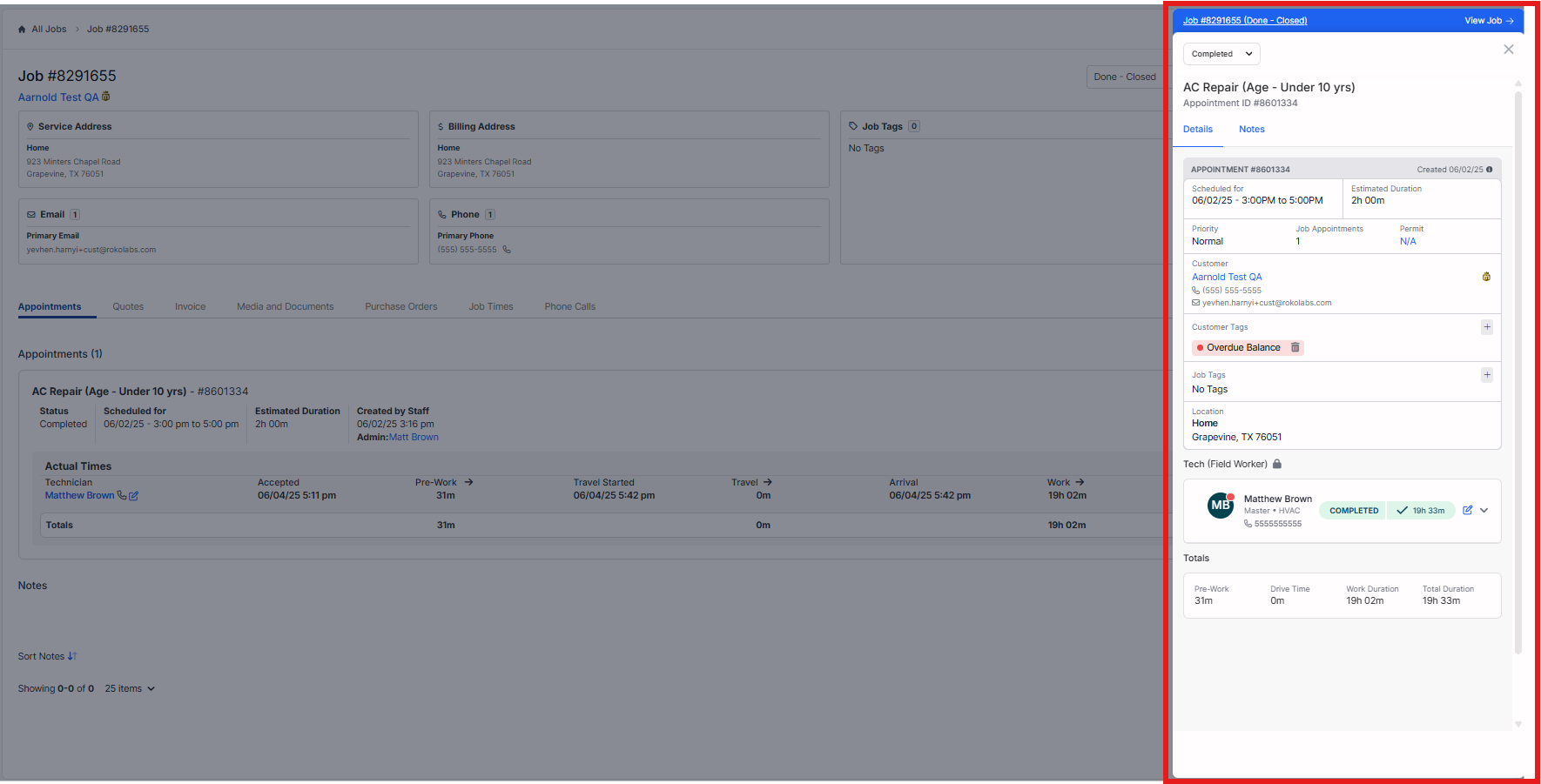
When you click Edit Appointment, the Schedule Drawer will pop out on the right side of the screen.
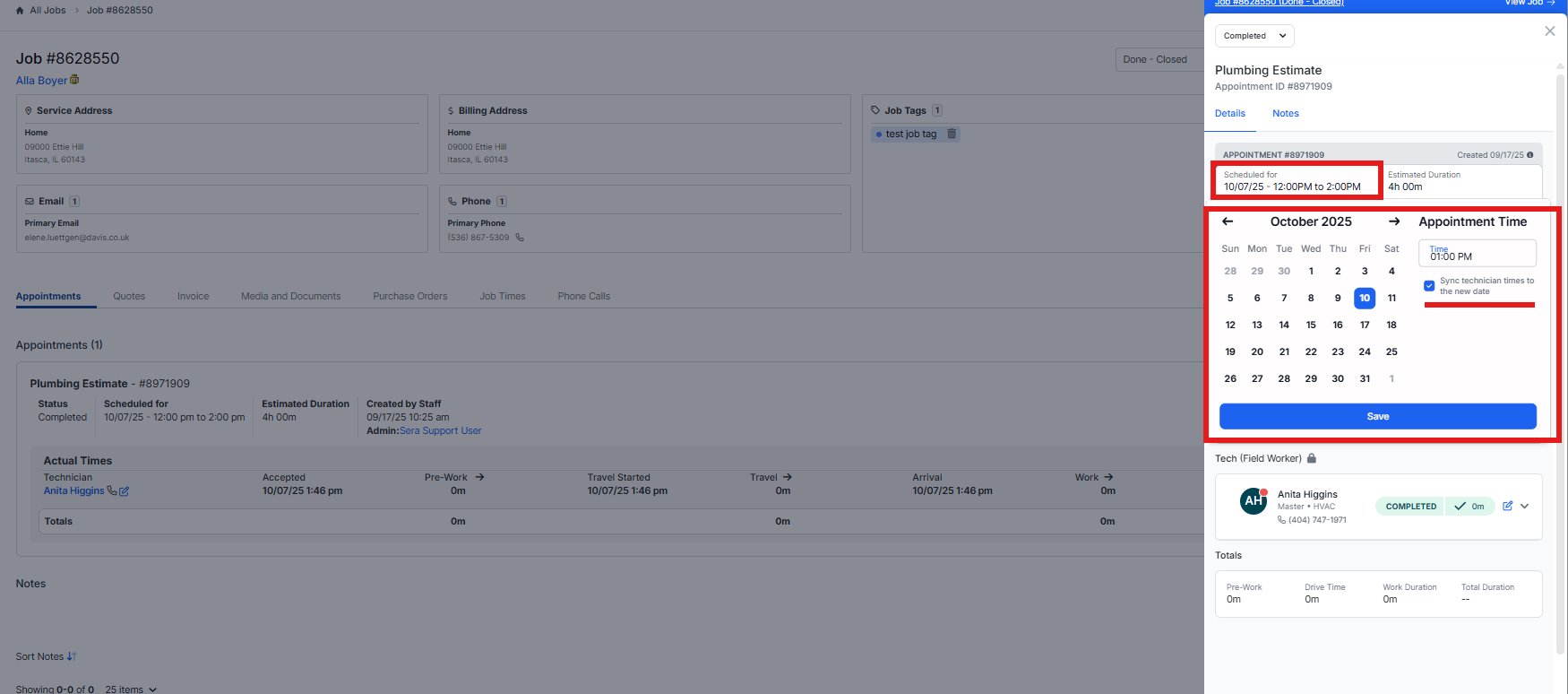
From here, you can click into the Appointment Date and a calendar will appear allowing you to change the date to a future or past date. You will also have the option to check the box to sync the technician times to the new date. This is important because if you have an appointment on a set date but the Technician dates / times are on another date, it may cause issues in your reporting. This checkbox will update the date for all Technicians on the appointment and you can see it within the schedule drawer once you hit save.