
What’s New
Admin can:
- Send a "Pay by SMS" link or "Pay by Email" link directly to a Customer from the Admin Portal to collect a payment. The link allows the Customer to pay directly without logging into their Customer Portal.
- Admins can also have a secure pay link automatically added to all invoices to help with payment collection.
How It Works
-
Locate the Invoice you'd like to generate a link for. You can do this within the Customer Profile under the Invoices tab or via the Job itself.
- Select Invoice Actions, then select Send Pay Link.
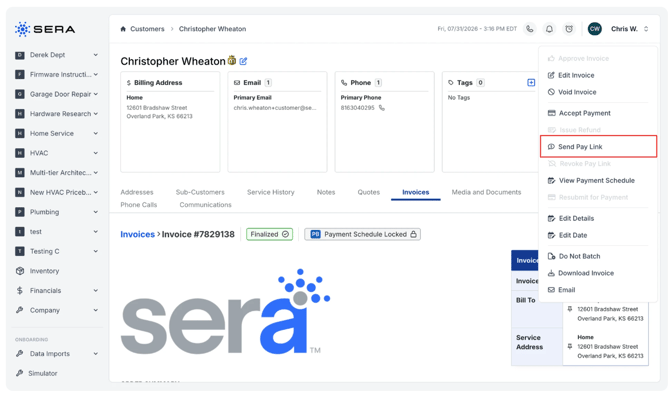
- A pop-up will present itself allowing you to toggle between a SMS link or Email link. For whichever item you choose, the primary email address or primary phone number is auto-populated in the screen.
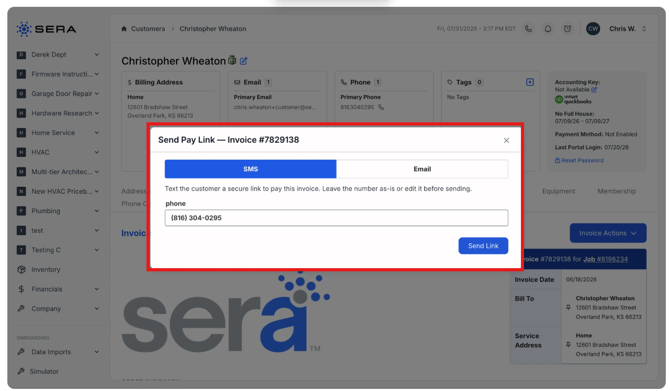
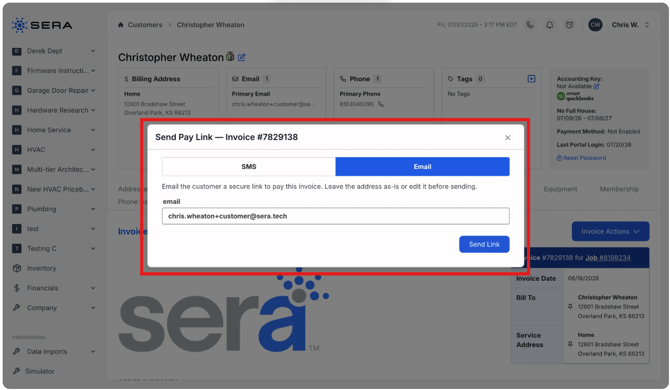
- You have the ability to send the link to the default number or change the number to send the link elsewhere. (Note: If you add a new number not currently on the profile, it will save the number as an Additional Phone at the top of the Customer Profile.
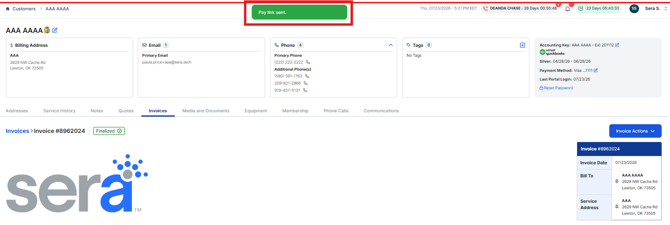
- Select Send when ready to have the link sent. You'll see a confirmation at the top of your screen when it is sent.
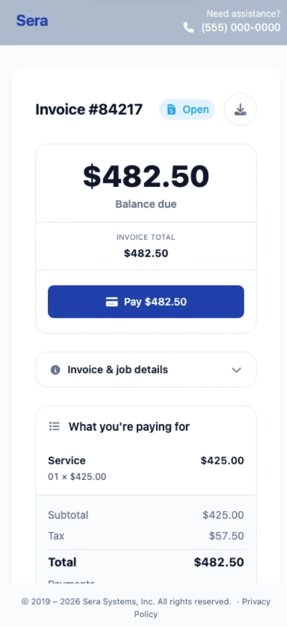
- The customer will receive a text message advising the Client name, Invoice #, and balance amount. It will them prompt the user to "Pay Securely" and will provide a magic link to pay.
- The link will open up the invoice view with the ability to pay directly from the link. Here is a visual example below.
How do we turn on the secure link settings within the invoice?
Go to Company > Feature Settings > then scroll and locate Invoice pay link in invoice emails and toggle this on!
