
We’re excited to introduce the first of many enhancements surrounding membership management in Sera!
When creating new memberships, you now have the ability to assign the membership to a Service Address. You will now need to select one or more addresses for the membership program to apply to when creating memberships from the Admin portal.
Within the Sera Mobile app, when Technicians sell a membership on a job / appointment, the service address being sold the membership is automatically associated and will carry through in the existing Membership To-Do screen.
What’s Included
Admins can:
-
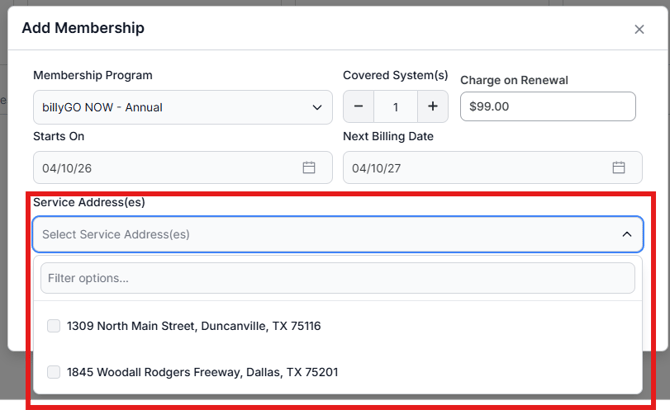
Navigate to the customer profile and add a membership tagged to a service address. You also have the option to multi-select addresses if you want to tag one membership to multiple locations within a customer's profile.
Technicians can:
- Continue to sell memberships from the Sera Mobile app, building quotes and sending invoices. Once approved and paid they will show up in the Admin portal under Membership To-Do and automatically tagged to the service address tied to the job / appointment where the membership was sold.
Membership Assignment at the Service Address (when a Customer purchases a Membership via Admin Portal or Mobile App)
When selling a Membership from the Admin portal, the experience has not changed, however the membership will be automatically be associated with the Service Address the quote and invoice was created for.
- By simply creating a quote, you have the option to choose which service address you'd like to create the quote for. Be sure you select the correct address where you'd like the membership applied.
- Once you quote is approved and invoice is finalized, you'll see the Membership request show up in the Membership To-Do section of Sera. Here, you'll be able to review, save and complete and the membership will become active and associated to the correct service address on the Membership tab of the Customer profile.
When a Technician uses the Mobile App and creates a quote / invoice that include a membership sold, the experience has not changed. The one enhancement is that the membership will automatically be associated with the Service Address the quote and invoice was created for.
Assigning a Membership to a Customer / Service Address from the Admin Portal
You can easily add a membership to a customer profile from the Admin Portal.
- Using the Customer hub, search for the customer and open their profile. You will see their hub and history as a customer, which will include addresses, service history, notes, quotes, etc.
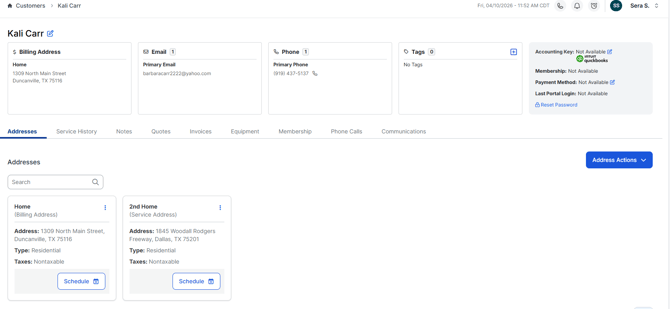
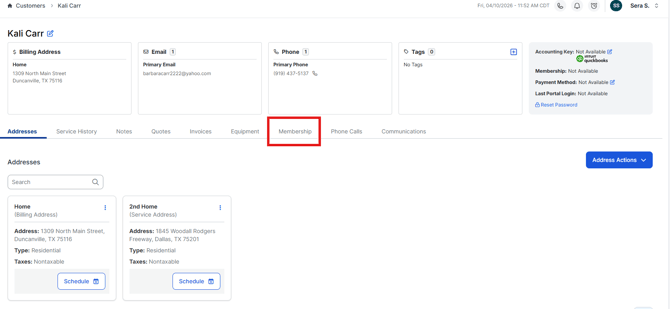
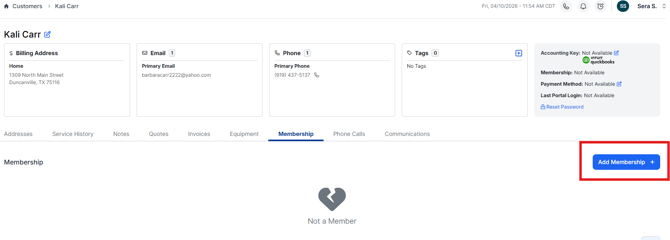
- Select the Membership tab. If they are already a member, you will see the appropriate details for their membership on file. If they are not, you will see they are not a member. To add a membership to the customer profile, select Add Membership +.
- You'll receive a screen that allows you to select which Membership program the customer is purchasing and you will see a multi-select dropdown for Service Address(es). You will be able to choose one or more addresses to apply the membership program towards. As a reminder, if you require customers to purchase a separate membership program for each address, you will want these added one at a time to ensure you are charging the appropriate amount(s).
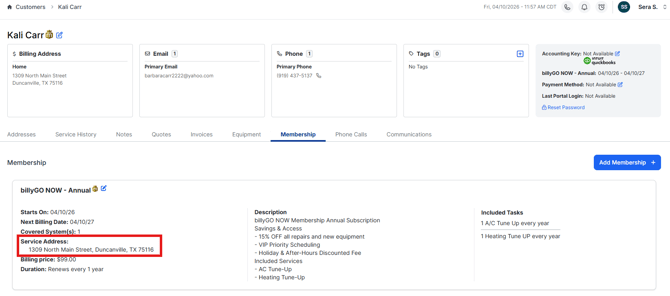
- Once you select a Service Address, select Save and the Membership program will update on the profile. You will be able to see which Service Address the Membership program applies to.
Learn More
To learn more about approving and activating memberships in Sera, please review the below Help Article.