
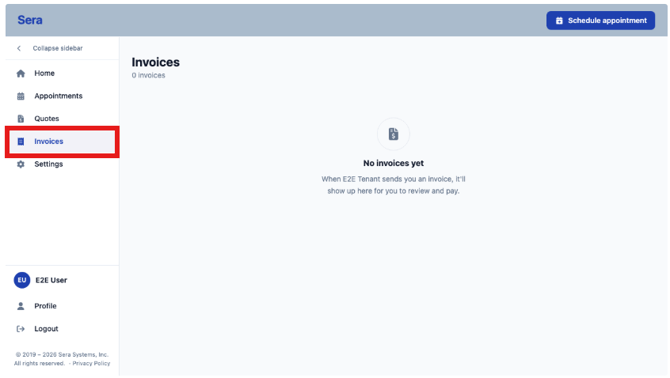
The Customer Portal gives your customers the opportunity to review their quotes anytime.
This allows you to:
-
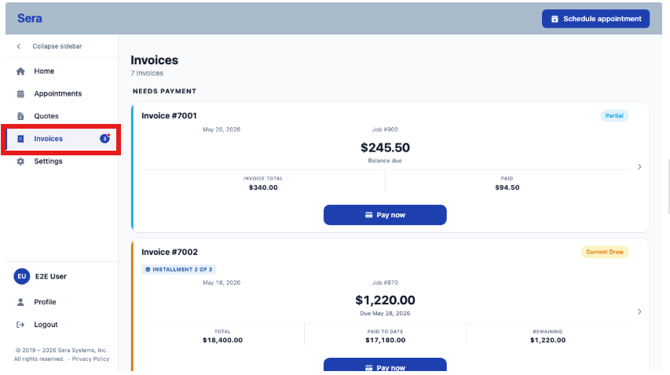
Check what you currently owe and pay it.
- See where you are on a progress-billing plan (current draw, what's next, what's past due).
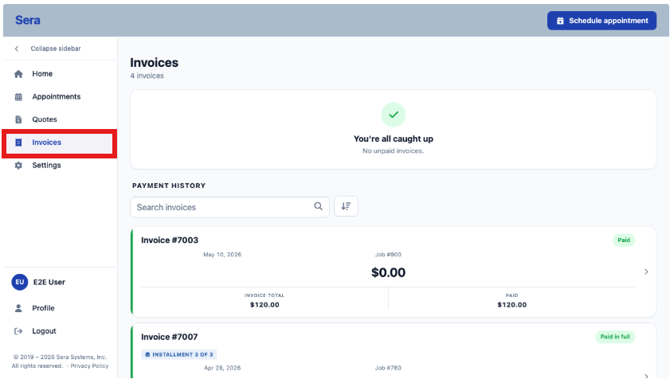
- Look up a past (paid) invoice by number or job.
Note: If you are setup to accept credit card and/or ACH payments through Stax or GPI, your customers are also able to pay their invoices in their portal. When clicking on the list of invoices, a customer has the option to apply for payment on any balance-due invoice. Additional details on making payments can be found further below in this article.
Invoice Detail
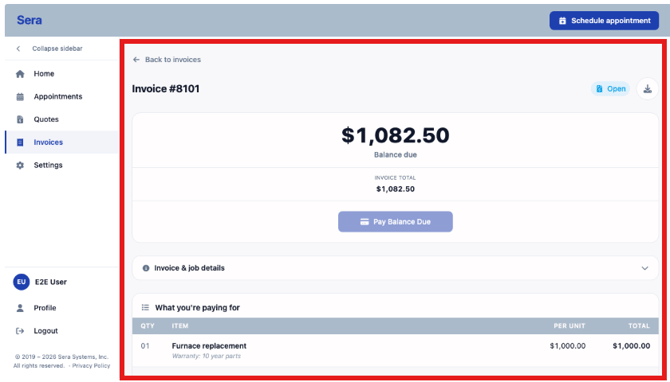
You can click into any invoice to see the specifics of the invoice and total amount due.
Paying an Outstanding Invoice
- Open Invoices from the menu. Anything you owe is at the top under Needs Payment.
- Find the invoice (progress-billing plans show the current draw and what's due).
- Tap Pay now on the card.
- Past-due bills are flagged in red with the date they were due — pay these first.
To find a paid invoice, scroll to Payment History and search by invoice number or job, or sort by date / total / balance.