What’s New
Technicians can:
-
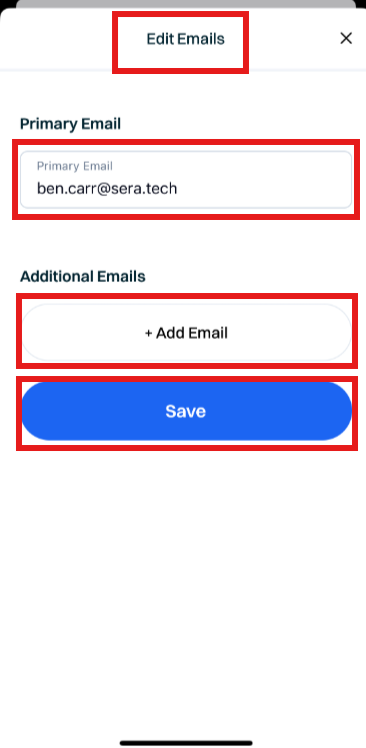
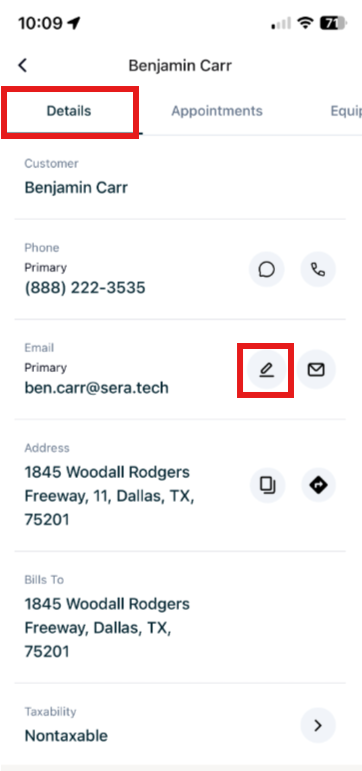
Navigate to Customer Details, scroll down to the Email Address section (where you can see both Primary and Additional Emails), locate the pencil icon and edit existing email address and/or add additional email addresses on behalf of the customer.
Admin can:
- Expect that any changes made in Sera Mobile are updated and reflected in real-time in the Admin Portal.
How It Works
This feature is automatically enabled as a native feature within Sera.
Be sure you are using the latest version of the Mobile App.
As we consistently improve aspects of the Mobile App, if there is a new version, upon logging in you'll be prompted to refresh the app. This is as simple as closing / logging out and back in. You'll always want to be on the most current version of the app.
The functionality is very user friendly.
- Locate Customer Details on Sera Mobile. Scroll down and locate the Email section. You'll now see a pencil icon which allows you to edit.
- Once you select the edit icon (pencil), you can edit any email addresses currently on file and/or you can add additional email addresses not yet captured in the system. Select Save when you are finished with your changes.