What's Included
Admins can:
- Set an hourly labor cost for each Technician and crew member, with the date it takes effect.
- See Revenue, Labor, Parts, the Finance fee, Purchase orders, COGS, Job profit and Margin on every Job.
- Compare the time sold in the pricebook with the time your team actually worked.
- Run the Job Costing report and download it to Excel.
Super Admins can:
- Do everything Admins can.
- Choose whether Admins can see and edit labor rates, and whether CSRs can see them.
CSRs can:
- See job cost on every Job and run the report. Hourly rates stay hidden unless a Super Admin turns them on for CSRs.
Technicians and Customers: Nothing changes in the Sera Mobile App or the Customer Portal. Job cost appears only in the Admin Portal.
Before You Start
Job Costing is only as accurate as the rates and times behind it.
Step 1. Set each person's hourly labor cost. Enter the fully loaded cost per hour, meaning wages plus burden, for every Technician and crew member. Anyone without a rate is costed at the department's labor rate, and the Job is marked Estimated.
Step 2. Check the department labor rate. It's the fallback for anyone without a rate of their own, and it prices the pricebook time in the Pricebook vs. actual labor panel.
Step 3. Keep visit times accurate. Labor uses the pre-work, travel and work time recorded on each visit, the same time the Job Times report counts.
Hourly Labor Costs
Job Costing prices each person's time at their own hourly labor cost. Use the fully loaded cost per hour, meaning wages plus burden such as payroll taxes and benefits. Anyone without a rate is costed at the department's labor rate, and their Jobs are marked Estimated.
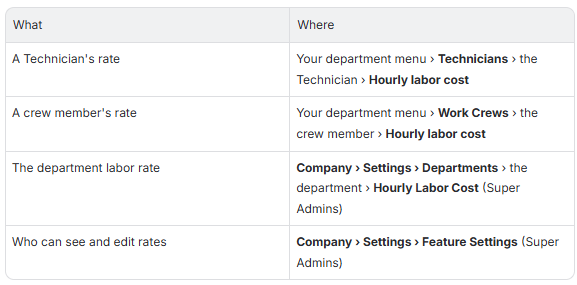
Where to Find It
Setting Up
Step 1. Open the person. Open the Technician from your department menu › Technicians, or the crew member from Work Crews.
Step 2. Enter the rate. Under Hourly labor cost, enter the Rate / hour.
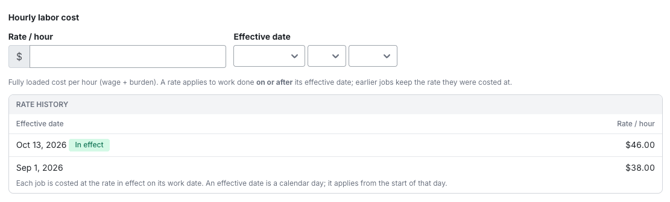
Step 3. Pick the effective date. The rate applies to work done on or after this date. If you leave it blank, the rate starts today.
Step 4. Save. The rate is added to the person's Rate history, and the current one is marked In effect.
How It Works
- Each Job is costed at the rate in effect on the day the work happened. A new rate doesn't change Jobs that were already worked.
- To re-cost past work, use an earlier effective date. Jobs worked on or after that date recalculate on their own.
- One rate per day. Entering a rate for a date that's already in the rate history replaces that day's rate.
- A future-dated rate waits for its date. Until then, the person's current rate (or the department rate, if they have none) still applies.
- The Technician's profile shows the current rate, with the date it started, or Department rate if they don't have one of their own.
Who Can See and Edit Rates
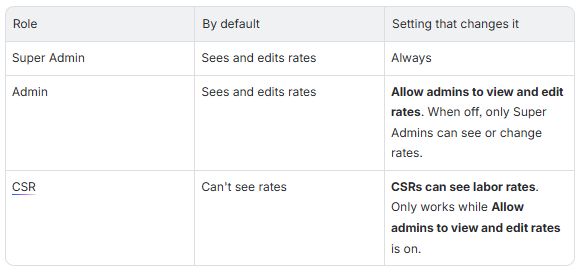
Both settings are in Company › Settings › Feature Settings. Someone who can't see rates still sees each person's hours and labor cost on a Job, but not the rate.

How Job Costing Works
Revenue is the Invoice total before sales tax.
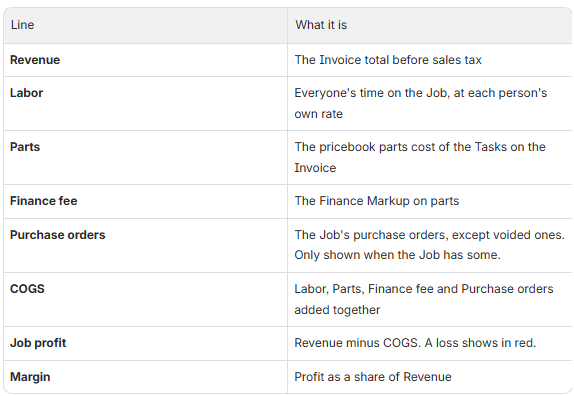
COGS (your cost of goods sold) is everything the Job cost you:
- Labor: each person's time on each visit, costed at the rate in effect on the day they did the work. Crew members count too.
- Parts: the pricebook parts cost of the Tasks on the Invoice. It's saved on each Invoice line when the line is added, so later pricebook changes don't rewrite past Jobs.
- Finance fee: the Finance Markup on parts.
- Purchase orders: every purchase order on the Job's Purchase Orders tab, except voided ones. This line only appears on Jobs that have purchase orders.
Job profit is Revenue minus COGS, and Margin is profit as a share of Revenue.
Job cost recalculates on its own when a visit's times, the Invoice, a purchase order, or a person's rate changes. If the numbers on an open page look out of date, reload the page.
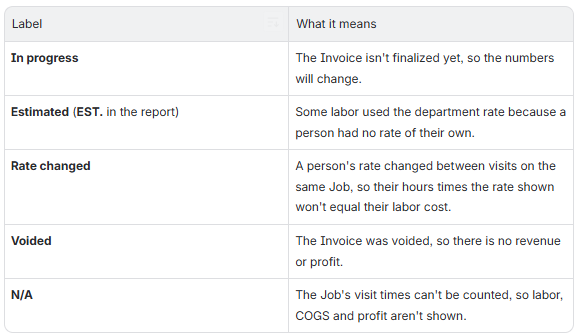
A few labels tell you how far to trust the numbers:
Job Cost Panel and Job Cost Tab
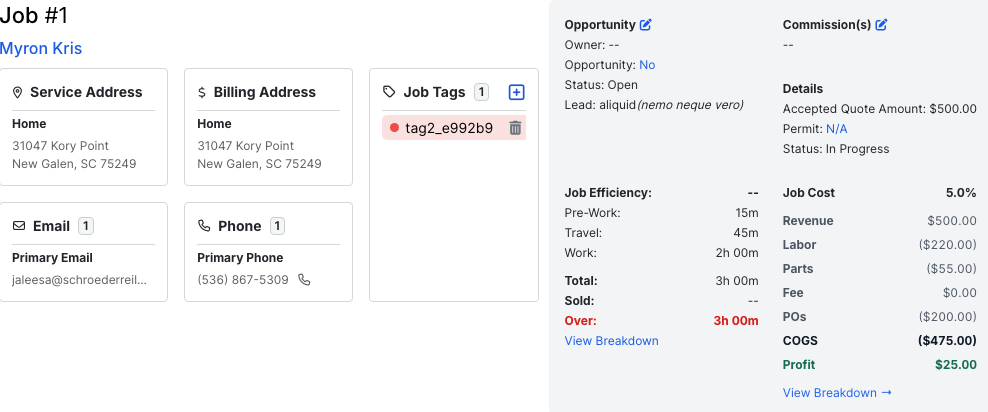
Within each Job, you'll now see a Job Cost tab. In addition there is a Job Cost panel at the top right corner of the job which is now updated.
The Job Cost Panel
The panel at the top of every Job shows the Margin, then Revenue, Labor, Parts, Fee, POs (when the Job has purchase orders), COGS and Profit. A loss shows in red. Select View Breakdown to open the Job Cost tab.
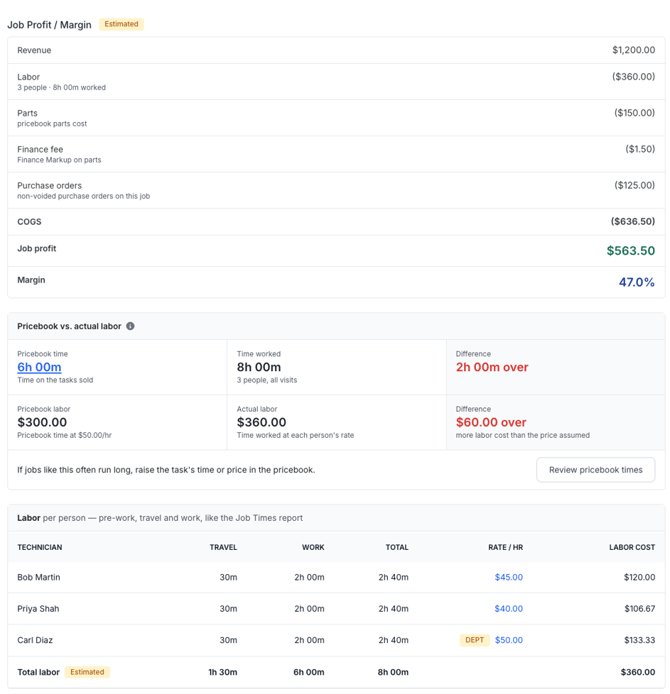
Job Profit / Margin
The top of the Job Cost tab lists, in order:
Labels next to the heading tell you how far to trust the numbers: In progress (the Invoice isn't finalized yet), Estimated (some labor used the department rate) or Voided (the Invoice was voided, so there is no revenue or profit).
Pricebook vs. Actual Labor
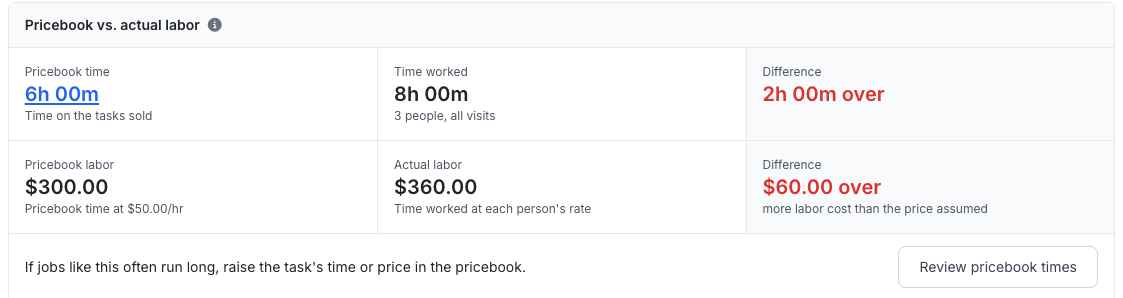
This panel compares the time on the pricebook Tasks sold on the Job with the time your team actually worked.
- Pricebook time, Time worked and Difference compare hours. Select the pricebook time to open the Job Times tab, where you can update each Task's sold time.
- Pricebook labor, Actual labor and Difference compare dollars. Pricebook labor prices the pricebook time at the department's labor rate. Actual labor prices each person's time at their own rate.
- When the two disagree, a note explains why. For example, a Job can run long but still come in under on labor when the people on it cost less per hour than the department rate.
- Select Review pricebook times to open the department's pricebook. If Jobs like this keep running over or under, update the Task's time or price there.
Labor
The Labor table lists everyone who worked the Job, crew members included, with their travel and work time (and pre-work, if your company uses it), their total, and what that time cost. It counts the same time as the Job Times report.
If you can see rates, the table also shows each person's Rate / Hr, linked to their profile:
- DEPT means the person has no rate of their own, so the department rate was used.
- Rate changed means their rate changed between visits on this Job, so their hours times the rate shown won't equal their labor cost.
Job Costing Report
We have a new Job Costing report located in Reports. This report answers questions like "Which jobs made money, and which lost it?" and "What is my profit margin across jobs in a date range?"
What data is on the Report?
The report lists one row per Job, newest Job first:
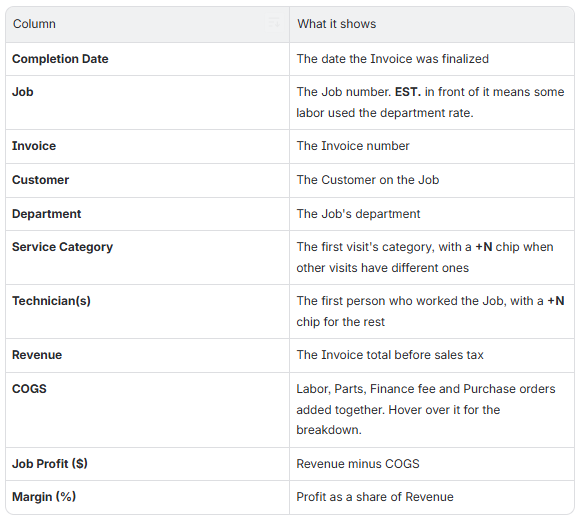
The totals row adds up the Jobs that match your filters, leaving out voided Jobs and Jobs whose visit times can't be counted. Its Margin is total profit divided by total revenue.
Filtering
Select Filter to narrow the report by:
- Completion Date. There's no date range until you pick one, so the report starts with every Job.
- Department.
- Technician: anyone who worked the Job, crew members included.
- Service Category: a Job matches if any of its visits has that category.
- Job Status, if your company uses Job statuses.
The COGS Breakdown
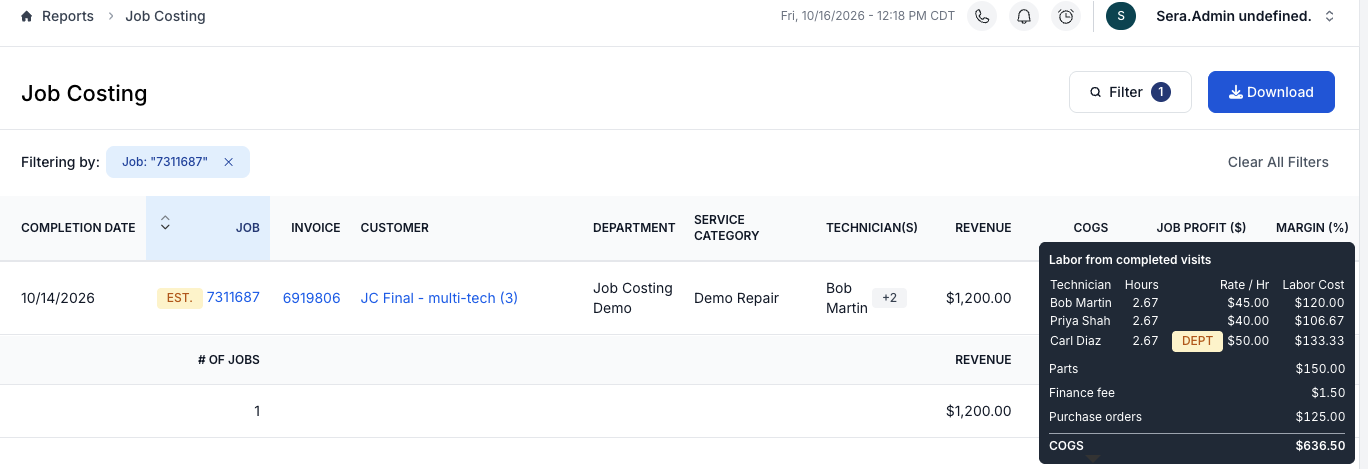
Hover over a Job's COGS to see its labor (each person's hours and labor cost, plus their rate if you can see rates), then Parts, the Finance fee and Purchase orders.
Downloading to Excel
Step 1. Filter the report to the Jobs you want.
Step 2. Select Download. The file builds in the background.
Step 3. Open the Notification Center and select Ready for Download when it appears.
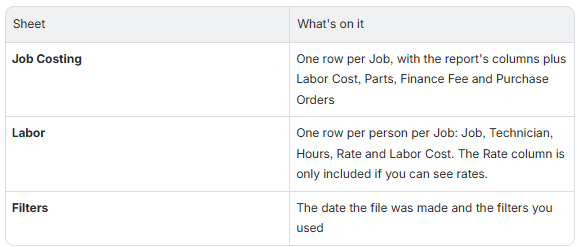
The Excel file has three sheets: