What’s Included
Admins can:
-
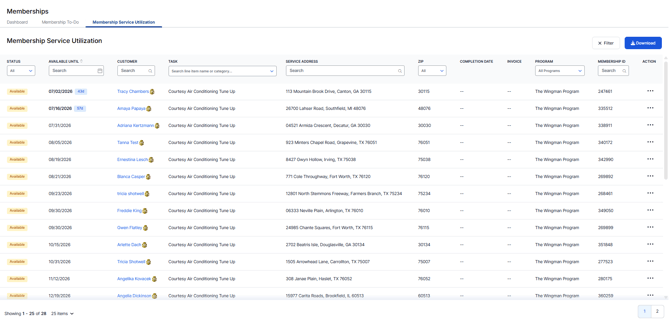
Navigate to Dispatch > Memberships and locate a new tab titled Service Utilization. Here, you'll be able to see all Services (or Tasks) included within the Membership program(s) you sell, organized by Customer and Service Address.
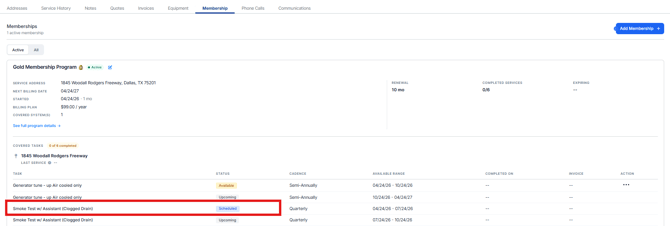
- Navigate to Customer > Select a Customer who is a Member > Select the Membership tab and here you will be able to see the full Membership details including the Service Address associated, the Included Tasks, and the current Status (as reflected on the Service Utilization tab). This gives another view just simply for the Customer and their Service Address, to help you manage your Membership program.
Managing the Service Utilization Tab
This tab is sorted by all "Available" services (under the Status column) in descending order so it shows the Tasks expiring first. Additional filtering is available if you'd like to sort alphabetically by Customer or even by Service Address.
The goal of this view is to enable you to see what Tasks have not yet been received by Members, so you can take action and proactively schedule service(s) with upsell potential, if or when the business would like.
When a Job is scheduled for the Customer and Service Address associated to the Membership, and a Task is sold on a quote and the invoice finalized, Sera will automatically update to reflect the Status as Completed on the Service Utilization tab.
Tasks available to schedule pull from the Membership Program itself based on what tasks are included for the Annual Contract Year by default. In the visual below, the dropdown will populate as Annually but you have the option to select Annually, Semi-Annually, or Quarterly as your Cadence. Be sure to update your quantities based on the cadence you select for each Available Task within your Membership program.
To make changes, you would do so at the Program level. Company > Programs > Memberships and from here you can edit the specific Membership Program(s).
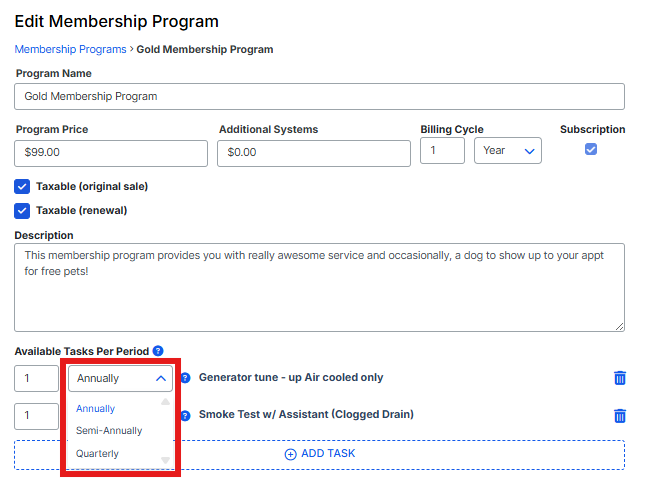
As an example, if your Annual Membership Program offers a Task that you would like included Quarterly, and you want to track Service Utilization with specific quarterly "due dates", you should set the appropriate Quantity of the specific Available Task, and select the Quarterly cadence from the dropdown. It will then will show up on the Service Utilization tab and will calculate the Available Until date based on quarters within your Annual Contract Period. This will help you ensure that any Member did not receive more than what is included in the Membership Program.
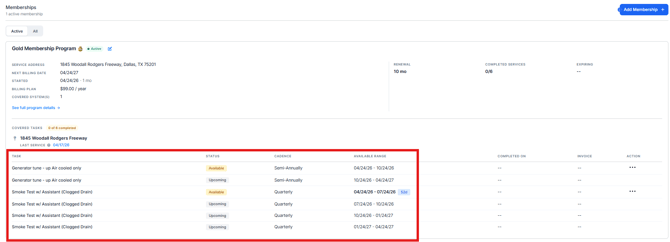
From the Customer Profile, you'll be able to full scope of the Available Services and a Date Range for when these Services are Available to be booked.
Scheduling an Available Service from the Service Utilization Tab
You can now take action and schedule directly from the Service Utilization tab for Available Services.
First, locate the pinned Action tab to the right of the page. For any row you want to take action on, using the 3 dots and then select "Schedule Visit".

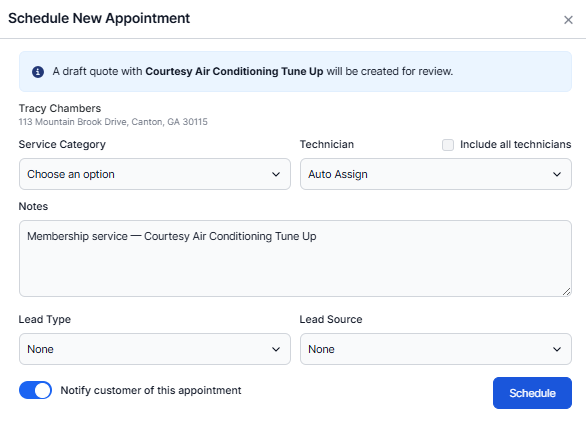
A scheduling box will appear on your page. In it, it will pre-populate the Customer name, the Service Address selected, and it will advise you that a draft quote will be created upon scheduling for review (specific for the service selected). It will also pre-populate a note on the job to advise this was created for a specific membership service.
Here, you will select the service category for the job to schedule and follow the prompts to auto-assign or manually assign the technician, identify the date and times, and select "Schedule".
You'll then be redirected to the actual job screen where you can see the quote tab will have a pre-populated quote ready in draft mode for review and editing.
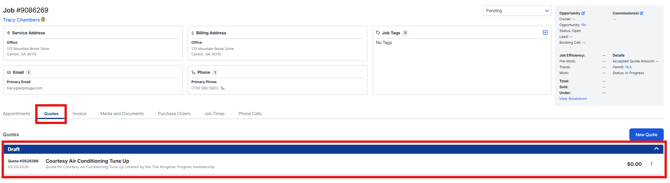
The job will assign to the Technician as typically expected and the Technician will be able to see the job notes and the drafted quote from the Sera Mobile app as expected today for all jobs.
Note: When reviewing your Service Utilization table, Tasks you scheduled directly from this view or from the Membership Utilization view on the Customer Profile, will now show as "Scheduled". This way, you can easily keep track of opportunities already scheduled vs. those which are still scheduling opportunities to help your business.
Visual from the Service Utilization Table:

Membership Management on the Customer Profile
Membership management is equally available from the Customer profile. If you locate the profile of a Customer who is a Member, and select the Membership tab on their profile, you'll now be able to see each Membership program associated to the Customer, including Start and End Date(s), Next Billing Date, Covered Systems, Service Address(es), Billing Price, Billing Period, and Description.
In addition, you'll be able to see the Covered Tasks as outlined by your plan, based on the Annual Contract Period. These are organized by Service Address, and includes the Task, Status (Completed, Available, or Upcoming), Candence, Available Range (which is the range to book based on the Cadence selected), Completed On (for completed tasks what date it was completed), Invoice, and Action to take action and schedule directly from here.
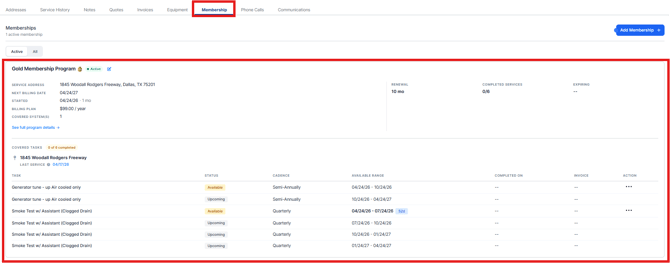
This is an additional view of the Service Utilization tab, simply within the Customer Profile to make administration and dispatching for efficient.
Scheduling an Available Service from the Customer Profile
You can now take action and schedule directly for a Membership "Available" service directly from the Customer Profile under the Membership tab.
First, locate the three dots on the right side of any Available Service. Once you select this, you'll see "Schedule Visit".
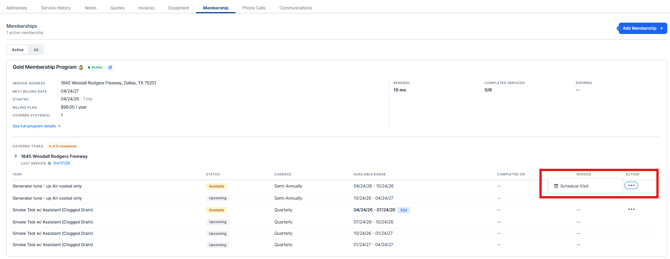
A scheduling box will appear on your page. In it, it will pre-populate the Customer name, the Service Address selected, and it will advise you that a draft quote will be created upon scheduling for review (specific for the service selected). It will also pre-populate a note on the job to advise this was created for a specific membership service.
Here, you will select the service category for the job to schedule and follow the prompts to auto-assign or manually assign the technician, identify the date and times, and select "Schedule".
You'll then be redirected to the actual job screen where you can see the quote tab will have a pre-populated quote ready in draft mode for review and editing.
The job will assign to the Technician as typically expected and the Technician will be able to see the job notes and the drafted quote from the Sera Mobile app as expected today for all jobs.
Note: When reviewing your Service Utilization table, Tasks you scheduled directly from this view or from the Membership Utilization view on the Customer Profile, will now show as "Scheduled". This way, you can easily keep track of opportunities already scheduled vs. those which are still scheduling opportunities to help your business.
Visual from the Membership Profile: