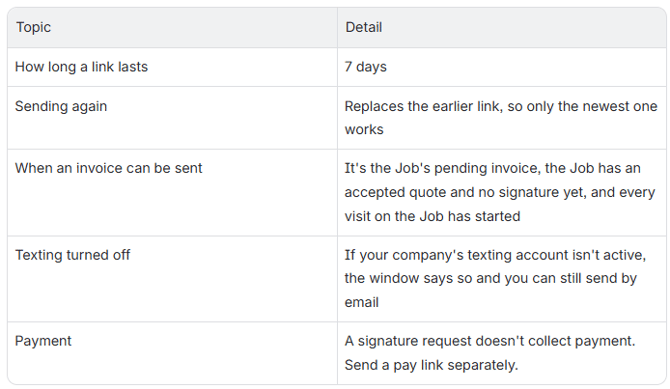
Magic Links
A magic link lets your Customer open their quotes or their invoice and sign without a username or password. You send it by text, email, or both. For what the Customer sees when they open it, see the Customer Portal article linked at the bottom of this page.
What's Included
Admins can:
- Send a magic link to every open quote on a Job.
- Send a magic link to sign an invoice.
- Get an email the first time a Customer opens a magic link.
Technicians can:
- Send the same magic links from the Sera Mobile App.
Note: CSRs can't send magic links.
How It Works
-
Within the Mobile app, the Technicians on a Job can select Send Quotes to Customer for a Quote and Send Signature Request for an Invoice.
-
For a Quote, locate the Send icon on your Open quotes.
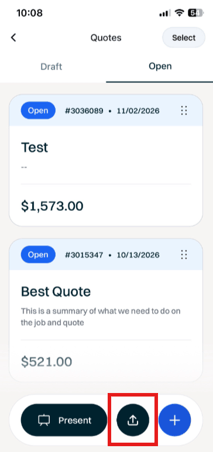
- When you do this, you'll be able to select whether you'd like to send the Magic Link via Text or Email or Both.
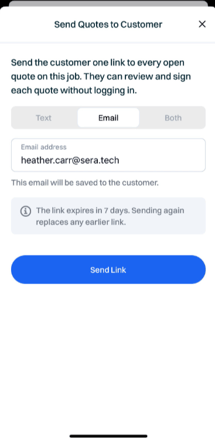
-
For invoices, just locate the 3 lines in the top right corner and when you select this, you'll be able to Send the Signature Request. Doing so will pop up the same screenshot where you can select whether you'd like to send the Magic Link by Text, Email, or Both.
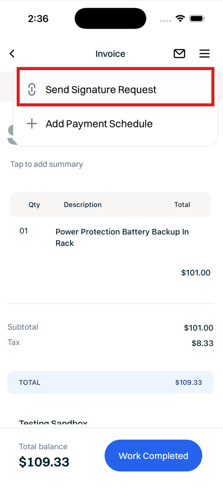
-
- From here, Customers can access the magic link or log into their Customer Portal and sign the Quote and/or invoice which will save to the record.
Additional Details