
What’s New
Technicians can:
-
Navigate to Media & Docs and add/remove Documents.
Admins can:
-
Navigate to the Job within the Admin Portal, locate the Media & Docs tabs, and view / review all uploaded Docs for that job in real-time.
This improves the experience for Media & Docs management and adds the ability to upload Documents, an important aspect when managing a job in the field.
How It Works
This feature is automatically enabled as a native feature within Sera.
Be sure you are using the latest version of the Mobile App.
As we consistently improve aspects of the Mobile App, if there is a new version, upon logging in you'll be prompted to refresh the app. This is as simple as closing / logging out and back in. You'll always want to be on the most current version of the app.
Once you Claim a job, the Media & Docs tile will be visible and accessible.
The functionality is very user friendly.
- Claim your job within the Mobile App, and locate the Media & Docs tile from your primary screen.
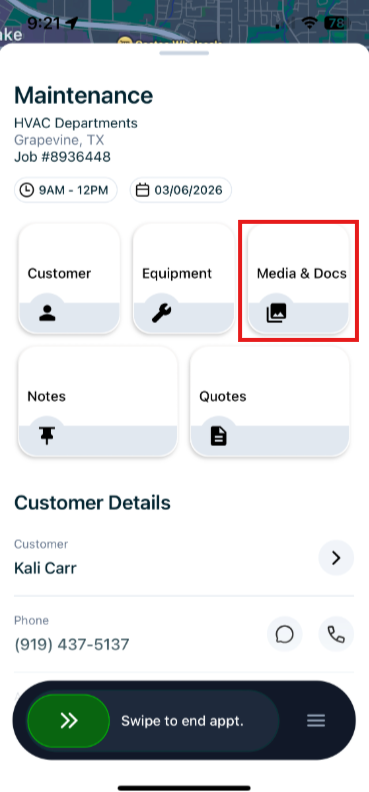
- Once you select Media & Docs, you'll be able to toggle between Photos, Videos, and Docs.
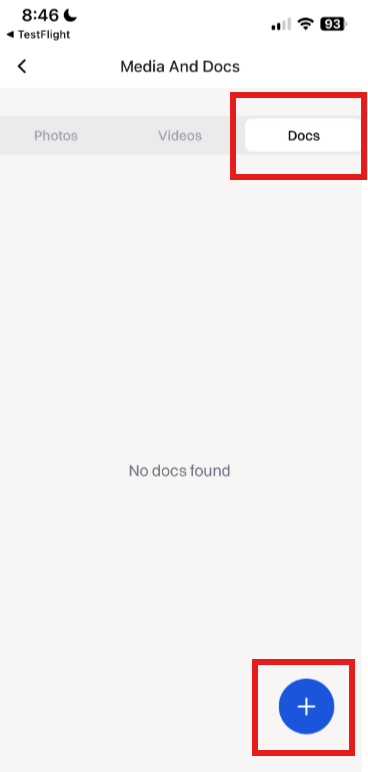
- From here, you have the ability to upload a document and it will pull up documents from your device.
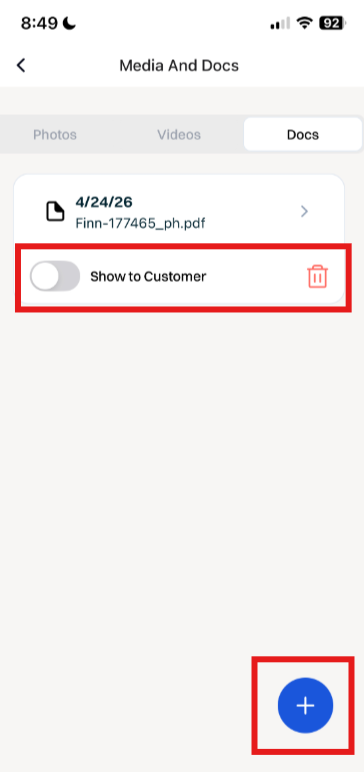
- Once the document is uploaded, you can toggle on and off to Show to Customer and/or to Remove the Doc (using the red trash can icon). Additional Docs can be loaded as well using the + icon in the bottom right.
The Admin Portal is synced in real-time.
You do not need to complete the job for the Docs to be viewable and downloadable from the Admin Portal. Simply navigate to the Job using the Jobs tab or via the Customer profile, and the Media & Docs tab in the Admin Portal will be accurately updated.