
What's Included
Technicians can:
- See every form attached to a job in the Sera Mobile App, and complete them as they work.
- Attach photos to any answer, either new photos or ones already on the job.
- Capture signatures.
- See what is outstanding when a required form blocks close-out.
Customers receive:
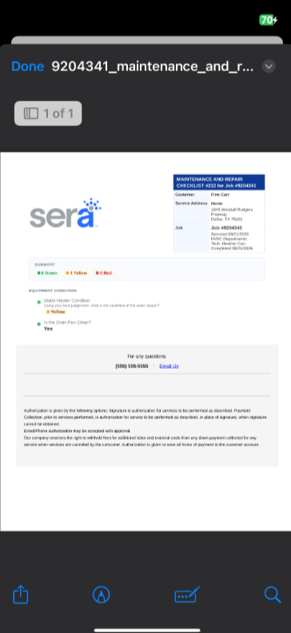
- A PDF of the completed form, filed on the job and emailed the same way invoices and quotes are sent. Internal-only questions are excluded.
How It Works
-
Jobs on the Mobile App will now have a tile called Forms and Checklists.
- If you click into the Forms & Checklist tile, you'll be able to see if there is a Form or Checklist to be completed, and whether it is required to close a job.
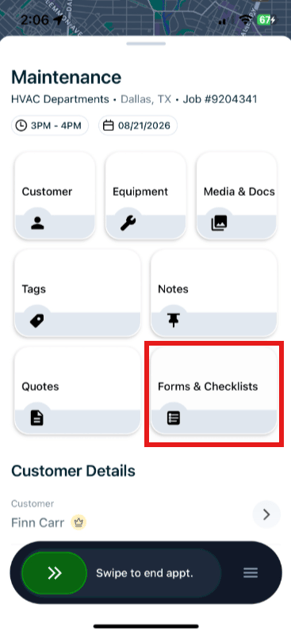
- You can easily click into the item within the tile, and begin completing the Form. Progress saves along the way.
- Your Admin has built a custom form, with certain questions to be answered, using a variety of form fields. Some questions are required; sometimes photos are even required. Each form or checklist is unique as outlined by your Management team.
- When you complete the form, the Submit form button will populate in blue at the bottom of the screen.
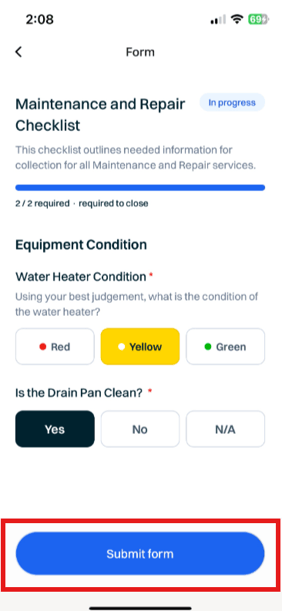
- When saved and submitted successfully, your screen will render a Submitted badge with a confirmation message. The Form will also automatically load into the Media & Docs tile within the Job, and is also accessible from the Admin Portal.
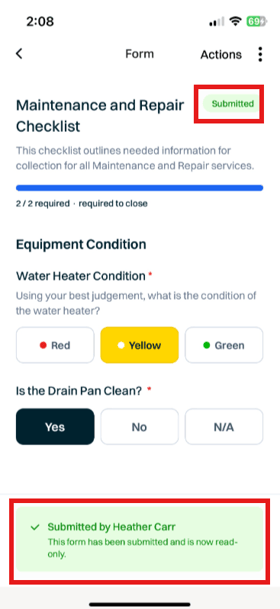
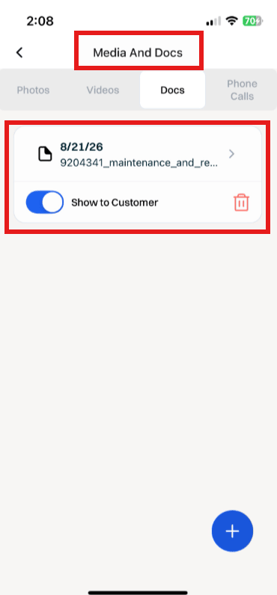
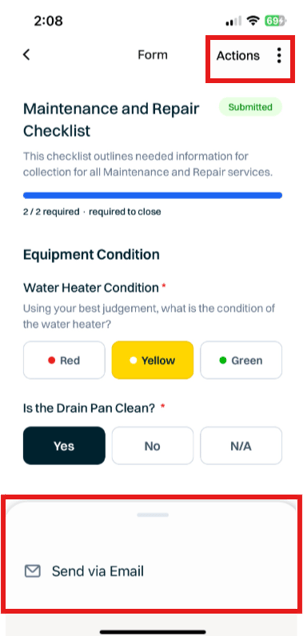
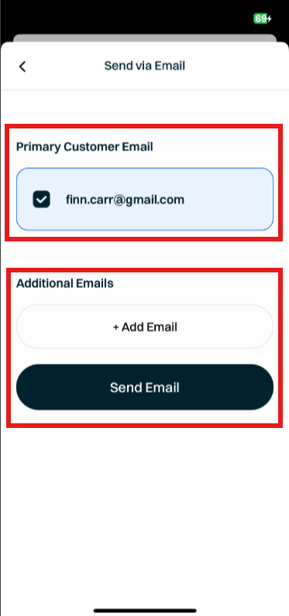
- By selecting Actions in the top right corner, you can send the PDF version of the completed Checklist or Form to the Customer, using the primary email address on file (or by adding a new email address).
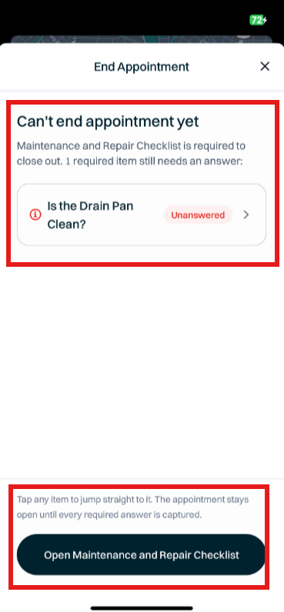
- If your form is required to close the appointment, you'll receive a block screen advising how many required questions are remaining. From here, you can go directly into the checklist or form to edit and finish before ending the appointment.
- Once you finish completing all required fields and complete the job, it's ready for the typical Swipe to end appt.