
Important: Whether you can see future appointments depends on your company’s settings and your individual technician permissions. If you don’t see the views described below, your access may be turned off.
What’s New
If enabled, technicians can now view:
-
All remaining appointments for today
-
Upcoming appointments on future days (up to 7 days ahead)
This gives you better visibility into your schedule so you can plan your day, route, and workload — without changing how appointments are claimed or assigned.
How Appointment Visibility Works
There are two layers of control that determine what you can see (must be enabled by admin users within Company Settings):
-
Company setting – Your company must allow technicians to view future appointments
-
Technician setting – You must be individually enabled by an admin
If either of these is turned off:
-
You’ll continue to see only your current or next claimable appointment, as always.
👉 If you believe you should have access but don’t see future appointments, contact your office or administrator.
Calendar View Overview
The Calendar is the default home screen in the mobile app.
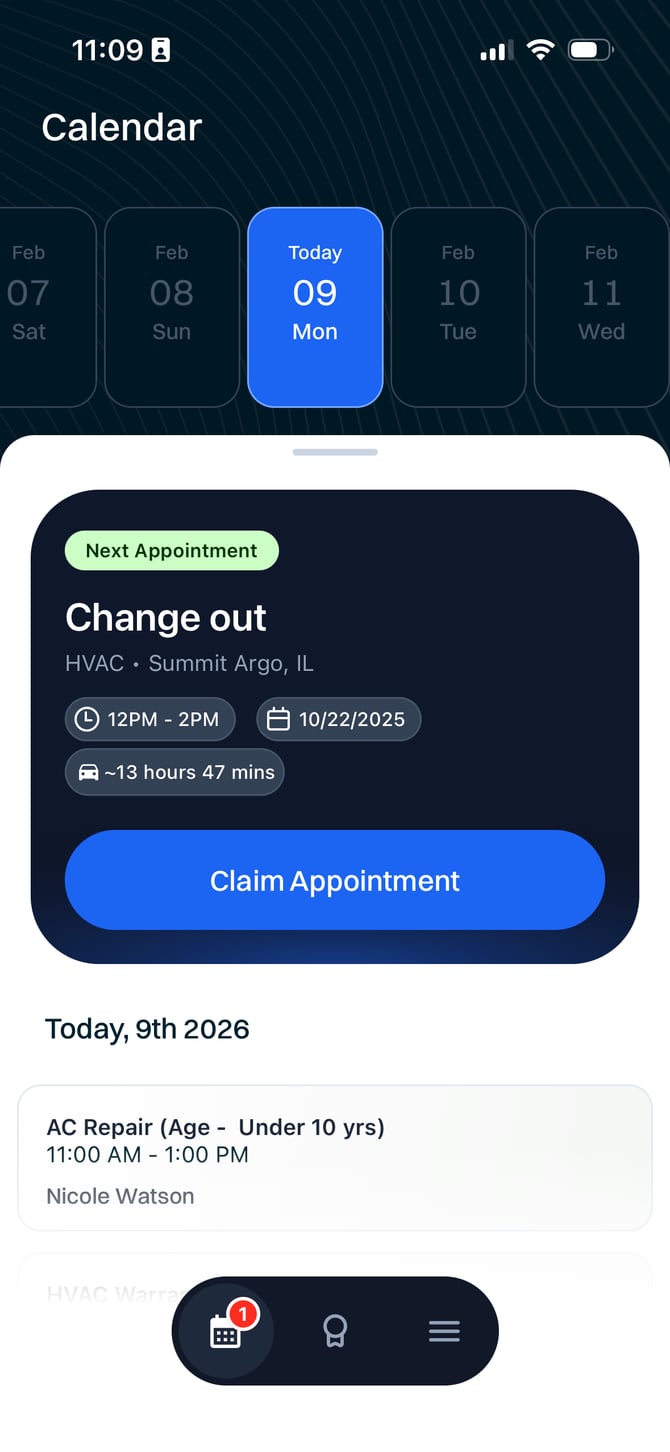
From here, you can:
-
See your schedule for today
-
Review your completed appointments from past days
-
Scroll to future days (if enabled)
-
Quickly return to today at any time
Today’s View: How It Works
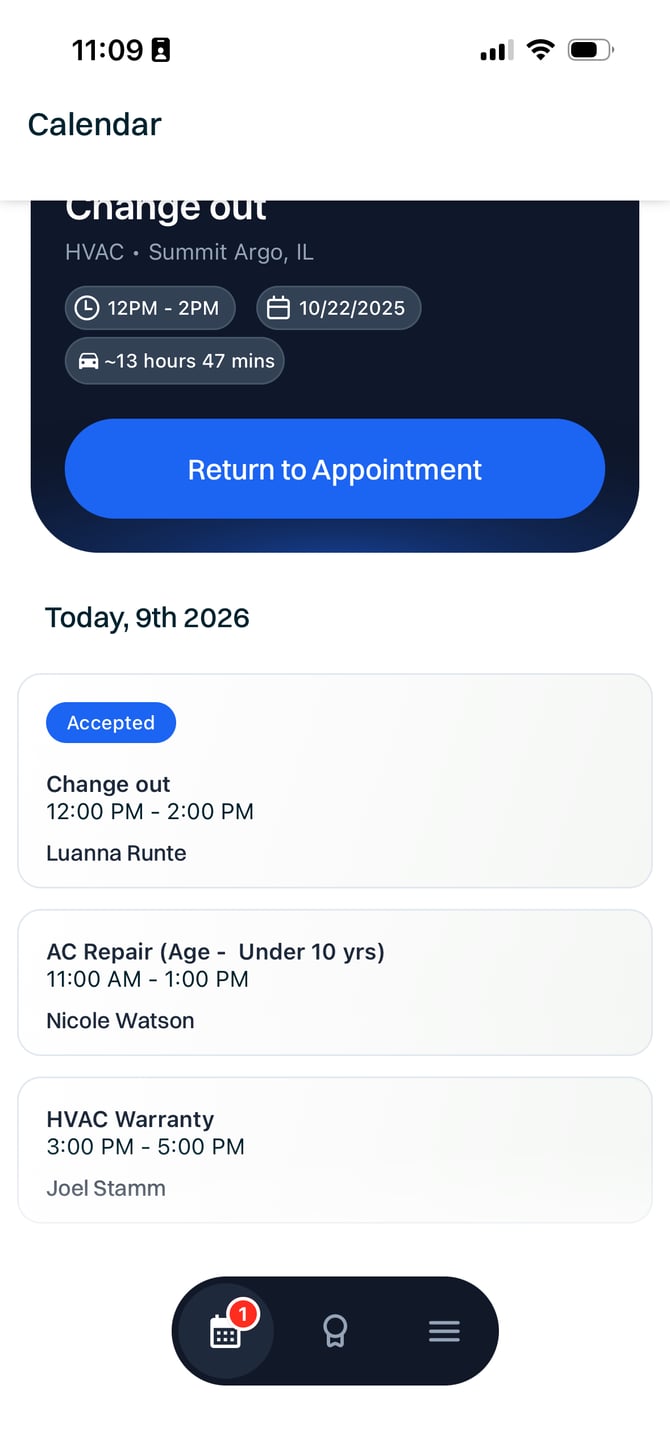
When viewing today, the calendar shows all appointments for the day, including:
-
Completed appointments
-
Your current appointment
-
Any remaining appointments later today
Key behaviors
-
You will only ever see one claimable or active appointment at a time
-
Once you complete an appointment, the next one becomes available to begin work on
-
Claiming behavior has not changed
Appointment statuses you may see
-
Working – You are currently on this job
-
Next – If you’re not currently working a job, the your next-up appointment will be highlighted for you
-
Completed – Work has already been finished
Viewing Future Appointments
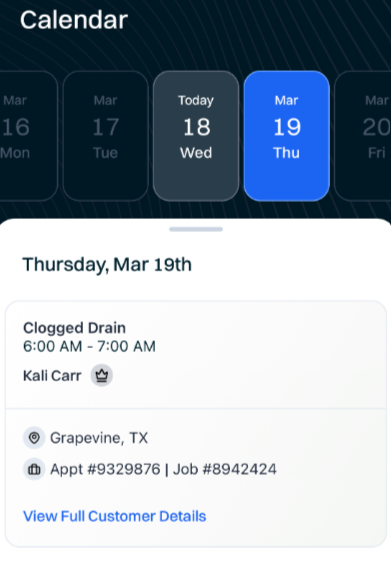
If future appointments are enabled for you, you can scroll forward in the calendar to view upcoming days.
What you can do
-
Scroll up to 7 days ahead
-
View scheduled appointments on future days
-
Tap into appointment details (read-only) and have the ability to View Full Customer Details (a link) to see additional details about the job.
What you cannot do
-
Claim future appointments early
-
Change appointment order or assignments
Future appointments are visible, not actionable.
Helpful tips
-
Tap any date to view that day’s schedule
-
Future dates with no appointments will not be selectable
-
Tapping the Calendar icon again always brings you back to today
Appointment Info
Tap on a future appointment to see additional info:
-
Location (city)
-
Appointment number
-
Job number
- Ability to View Full Customer Details via link
Frequently Asked Questions
-
Why can’t I see future appointments?
-
Your company or technician permissions may not be enabled. Check with your admin.
-
-
Can I claim an appointment early if I can see it?
-
No. Claiming rules are the same as before.
-
-
How far into the future can I see?
-
Up to 7 days ahead, depending on already-scheduled appointments.
-
-
Will this change how dispatch schedules jobs?
-
No. Dispatch and scheduling workflows are unchanged.
-
-
Does everyone on my team see this?
-
Only technicians who are explicitly enabled by their company and admin.
-
Need Access?
If you believe future appointment visibility would help you:
-
Talk to your dispatcher or office manager
-
They can enable access if your company allows it