
If a customer is having difficulties logging into their Customer Portal, technicians can quickly send a password reset link directly from the Sera Mobile App. This helps avoid unnecessary delays and improves the customer's experience by giving them quick access to their account information, quotes, invoices and more!
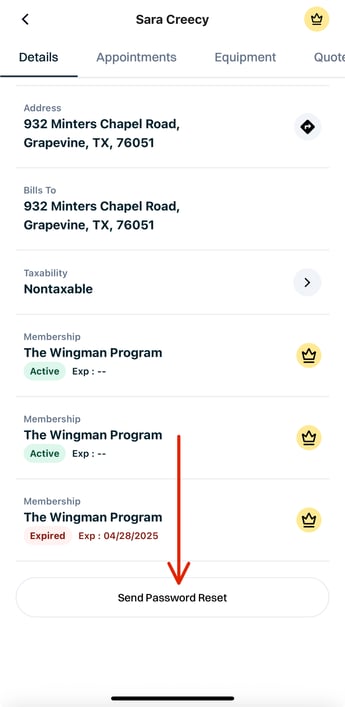
Send a password reset when:
- the customer can no longer remember their login credentials
- the customer can't access the portal at all and requests assistance
- the customer has recently created a new account and didn't receive the initial password set up communication
Steps to send a password reset for the customer's job you're on:
- Navigate to the Customer Profile
- From Job Summary, tap on the Customer tab
-
- You will see the button at the very bottom of the Customer profile Details tab
- Tap this button to immediately send a password reset link to the customer's email address on fileLocate the Send Password Reset button at the bottom of the 'Details' tab
Steps to send a password reset for a different customer
- Navigate to the Customer Profile
- From the floating bar at the bottom of the screen, tap the Main Menu button
- Select Customers
- Search for the customer's name. Remember: you will need to type at least 4 characters of the name, address, email or phone number in order to search
- Locate the Send Password Reset button at the bottom of the 'Details' tab
- You will see the button at the very bottom of the Customer profile Details tab
- Tap this button to immediately send a password reset link to the customer's email address on file
Best Practices
- Confirm with the customer
- Let the customer know that the password reset has been sent
- Remind them to check their inbox (and spam/junk folder if they don't see it within a few minutes)
- Verify the customer's email address is correct before sending the reset.