What’s New
Technicians can:
-
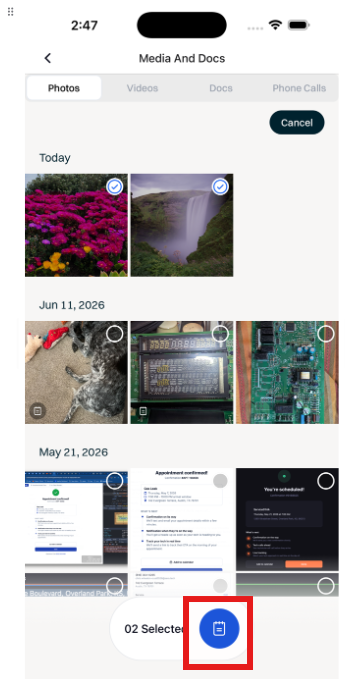
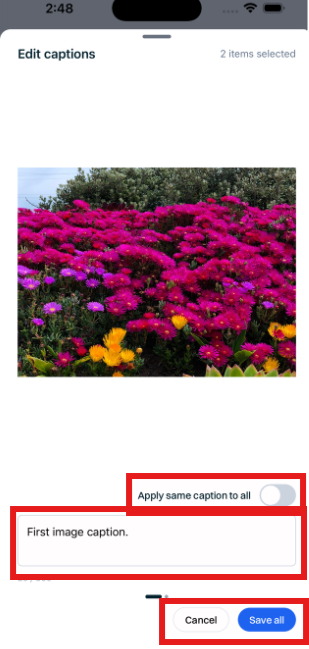
Add captions to media from the Mobile app and make these captions visible to the customer along with all other media.
Admin can:
- Expect that any changes made in Sera Mobile are updated and reflected in real-time in the Admin Portal.
Customers can:
- See all media from the Customer Portal and view captions if they have been applied.
How It Works
This feature is automatically enabled as a native feature within Sera.
Be sure you are using the latest version of the Mobile App.
As we consistently improve aspects of the Mobile App, if there is a new version, upon logging in you'll be prompted to refresh the app. This is as simple as closing / logging out and back in. You'll always want to be on the most current version of the app.
The functionality is very user friendly.
- From the mobile app, select the Media & Docs from within the Appointment you are on.
- From here, you can take new images or videos and/or load from your device's camera roll.
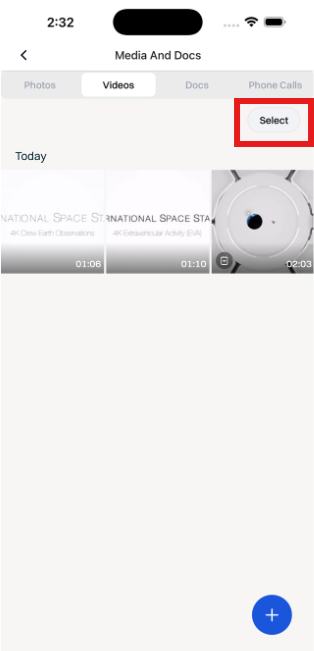
- Once an image is added, use the Select button in the top right corner.
- Select the caption icon at the bottom of the screen, and within the text field, type in the caption. You can select multiple photos at once and apply a caption across all photos, as well.