
What’s New
Admin can:
- Apply a single payment across multiple open invoices for one customers.
- Send in one payment (as an example, a check) and have it applied to multiple open invoices.
What It Does
When a customer hands over one check (or one card) to settle several invoices at once, an admin can now select those invoices together and record one payment that pays them all in full. Behind the scenes it stays a single payment — so your reports, accounting batches, and QuickBooks export all show one payment linked to the invoices it covered, never a duplicate per invoice.
The problem it solves: previously, a customer paying several invoices with a single check forced the admin to open each invoice and record a separate payment, splitting the check by hand. That's slow and error-prone, and it muddies reconciliation. Now it's one action.
Availability
Available for QuickBooks Online–connected companies only in this first release. If a company isn't connected to QuickBooks Online, the payment is blocked with the message "Multi-invoice payments are not available with the current accounting configuration."
How to Use This Feature
- Locate the Customer profile and select the Invoices tab.
- Select at least two (2) invoices.
Only invoices that can actually be paid are selectable — an invoice is greyed out if it has no balance due, is a draft, is voided, or was imported from another system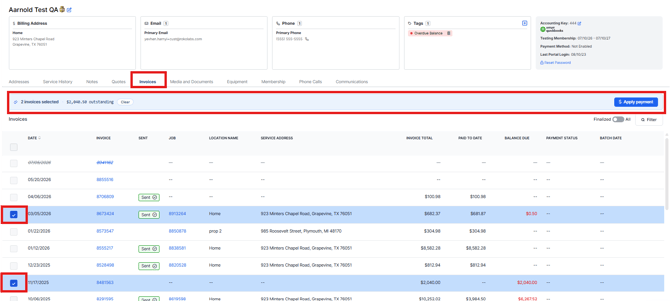
- As soon as two or more invoices are selected, a blue banner appears above the list showing the count and the combined outstanding total, e.g. "2 invoices selected · $4,051.20 outstanding." The banner has a Clear button (to reset the selection) and an Apply payment button.
- Select Apply Payment and the payment module pops on the screen.
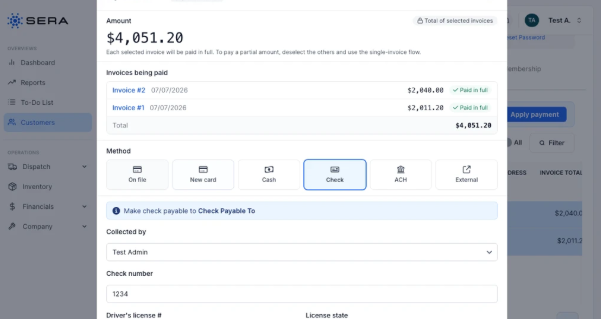
- Notice the following:
- The Amount is locked to the total of the selected invoices and can't be edited — there's a small lock chip that reads "Total of selected invoices." This flow always pays each invoice in full; there are no per-invoice "apply this much" boxes. (To pay a partial amount, deselect the others and use the normal single-invoice payment flow.)
- The Invoices being paid section lists each invoice with its number, date, balance, and a green "Paid in full" tag, followed by the combined total.
- Notice the following:
- Choose your payment method and review.
-
Pick the payment method — the tiles are On file, New card, Cash, Check, ACH, and External — and fill in any details (for a check, the check number; for a card on file, choose the saved card). Then click Review payment.
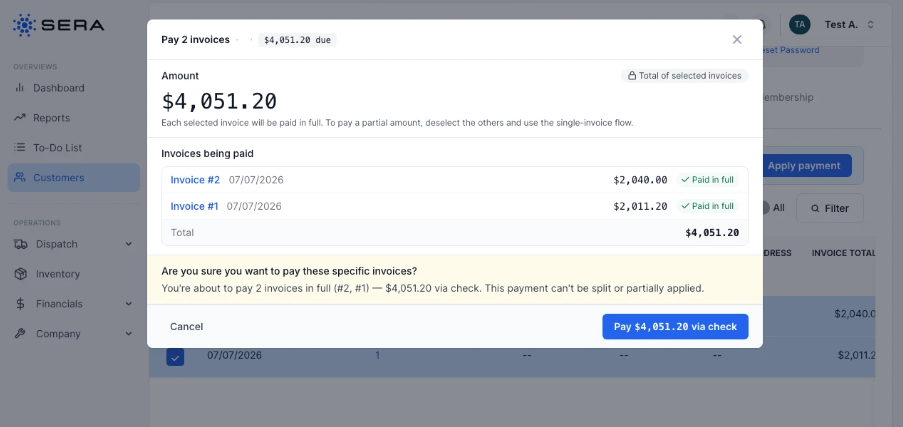
- A confirmation step appears (highlighted in amber) that spells out exactly what's about to happen: "Are you sure you want to pay these specific invoices? You're about to pay 2 invoices in full (#2, #1) — $4,051.20 via check. This payment can't be split or partially applied." This is the safety check to prevent paying the wrong invoices.
-
- Confirm Payment.
- Click Cancel to return to the payment step and change something - nothing is charged.
- Click Pay $4,051.20 via check to record the payment.
- One payment is recorded, every selected invoice drops to a $0.00 balance, and the list refreshes. You'll see a "Payment processed successfully!" confirmation.
Reports and Quickbooks
- In reports. Each invoice still shows up as exactly one row in the Revenue and Pending Revenue reports, with the correct revenue, balance, and batch date — no duplicated or inflated rows from sharing a payment.
- In QuickBooks Online. The batch export creates one Payment record in QuickBooks, linked to each covered invoice via QuickBooks' standard Linked Transactions — matching the total and reference (e.g. the check number) the admin confirmed in Sera.
Rules and Limitations
- Full payment only. Every selected invoice is paid to a $0 balance. This flow is not for splitting a partial amount across invoices — use the single-invoice flow for partial payments.
- One customer at a time. All selected invoices must belong to the same customer.
- Eligible invoices only. Zero-balance, draft, voided, and imported invoices can't be selected. The header "select all" control selects only payable invoices, even across multiple pages.
- Refunds are all-or-nothing. A card payment made across multiple invoices can be refunded in full — which reverses every covered invoice together. Partial refunds of a shared payment aren't supported.
- Balances must be current. If one of the selected invoices is paid or changed by someone else between selecting it and confirming, the payment is rejected with a "balances have changed" message and nothing is recorded — reopen the selection to see the updated amounts.
- One receipt. A single customer receipt is produced (on the primary invoice) whose memo lists all the invoices the payment covered.