
Multiple Technicians on an Appointment
We’re excited to introduce a long-requested update: the ability to add multiple technicians (up to 15) on a single appointment.
These release notes will provide you with general information on this feature, and there are additional articles at the bottom of the page linked to provide step-by-step instructions within the Admin Portal and the Mobile App for Technicians.
What’s Included
Admins can:
-
Assign up to fifteen (15) technicians on a single appointment when booking jobs.
- Reassign technicians at any stage of the appointment via the appointment drawer on the schedule drawer.
- Track job progress for every technician assigned on the job (you'll see on the dispatch board as they claim the appointment, their travel time, and so on, for each individual technician assigned).
- See updated Job Time Efficiency (JTE) as each Technician will manage the appointment using the Mobile App and the JTE report will accurately reflect time spent and work performed.
Technicians can:
-
Use the complete Mobile App experience in collaboration with other technicians assigned on a specific job or appointment.
- Claim appointment, start pre-work, begin travel time, upload and add in notes, photos, and documents, build quotes and access other quotes created by technicians on the same job, and close out the job once they complete their work.
Scheduling a New Appointment for Multiple Technicians
-
From the Dispatch Board, Admins can create a new appointment using the +New button in the top right corner, then selecting appointment.
-
Here, the admin will fill out the basic of the appointments, using the Customer Lookup, selecting the Service Category, and adding in Notes.
- Instead of having the Technician Auto-Assign, using the dropdown menu which is a multi-select picklist, select the technicians you would like assigned to this appointment.
- The multi-select picklist is only going to show technicians who are skilled for the service you selected.
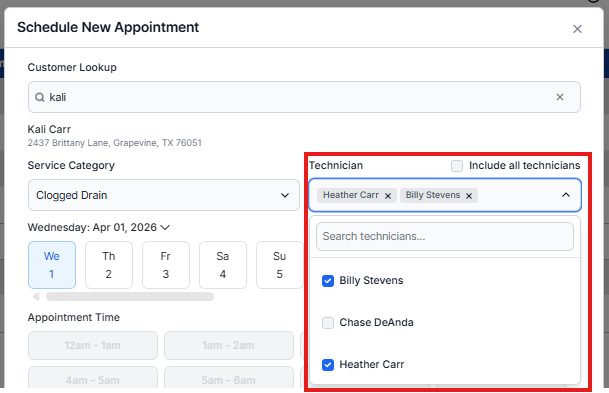
- The multi-select picklist is only going to show technicians who are skilled for the service you selected.
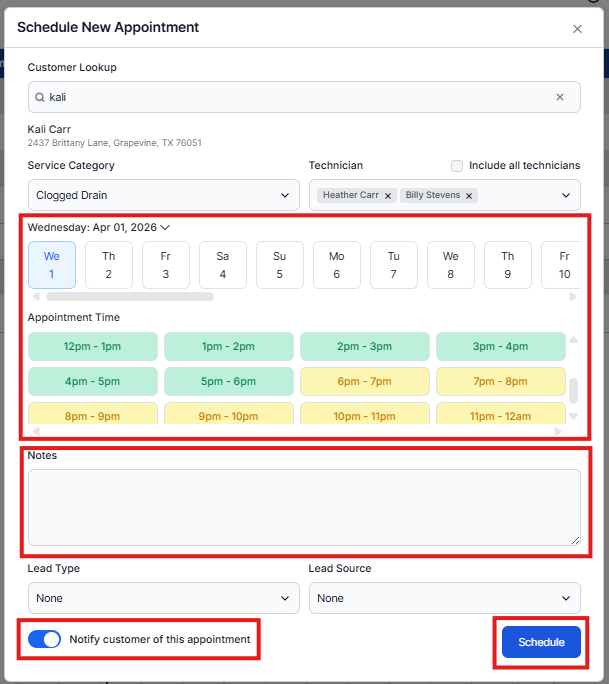
- On the Schedule New Appointment screen, you'll get to see availability. The availability takes into consideration all of the technicians you selected and what their schedules look like.
- You can toggle to a different day and this functions the same as when scheduling for one technician.
- Yellow appointment times mean all of your technicians are not available during that selected window, green appointment times mean all of your technicians are available.
- You can still schedule during a yellow appointment window, however you will likely need to adjust other appointments on your schedule board to accommodate.
- You can then add notes, select the Lead Type and/or Lead Source, toggle on/off the ability to notify the customer of this appointment, and select Schedule when ready.
The Dispatch Board for an Appointment with Multiple Technicians
-
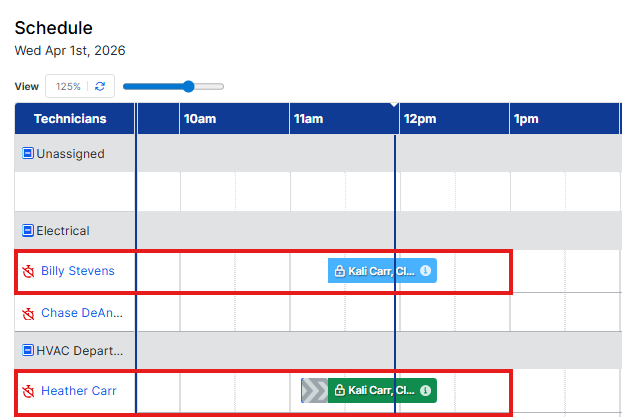
Once you schedule the appointment for multiple technicians, you will see the Dispatch board update and populate the appointment for each technician selected.
-
The appointment will be locked and all native functionality will work as expected. This includes the lock icon, member icon, hover-over information icon, and the schedule drawer when clicking on a job from the dispatch board.
-
- If you drag and drop the appointment to another time, the appointment will update for all technicians assigned and the schedule board will reflect accurately.
- Technicians can claim appointments, start pre-work, begin drive time, and so on. The dispatch board will reflect this at the technician level. The image below shows a job held by two (2) technicians, where one technicians has claimed and arrived and the job is "in progress" while the other technician has not yet claimed the appointment.
The Schedule Drawer for an Appointment with Multiple Technicians
-
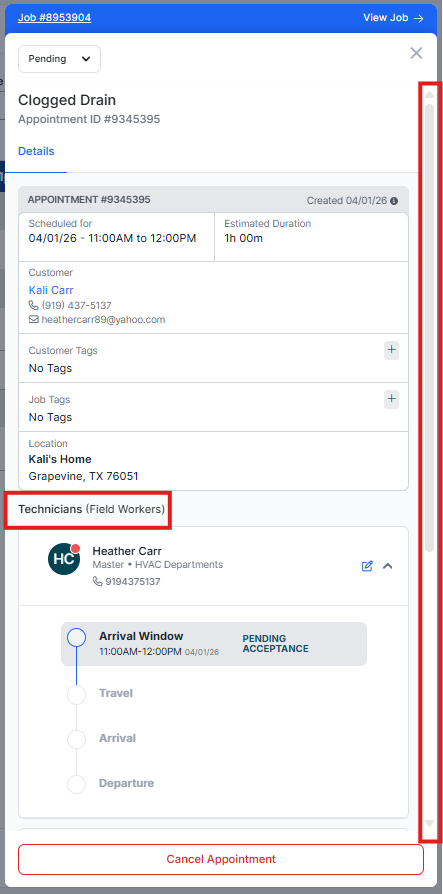
From the schedule board, you can click on the appointment and it open the schedule drawer on the right side of your screen.
- Here, you'll see all appointment details as usual, and if you scroll down you will see all technicians assigned on the job and the current status by technician.
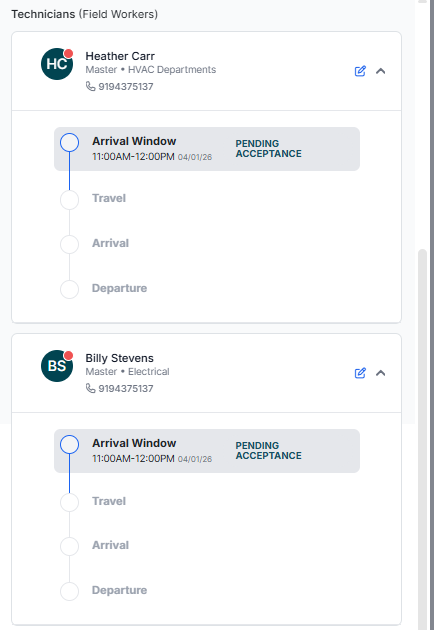
-
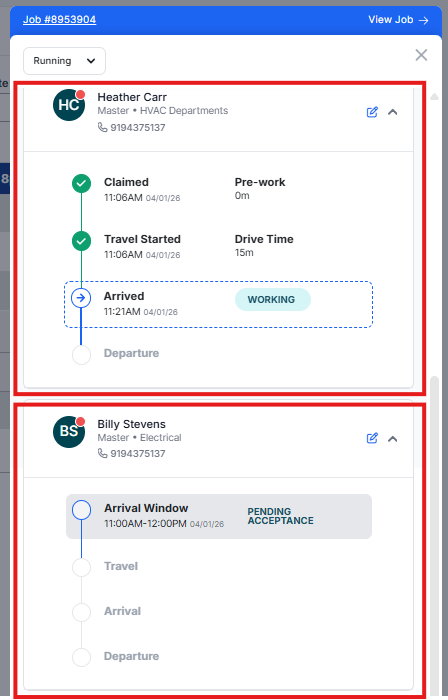
As technicians claim the appointment, you'll be able to see their status and times updated here from the drawer (in addition to the dispatch board).
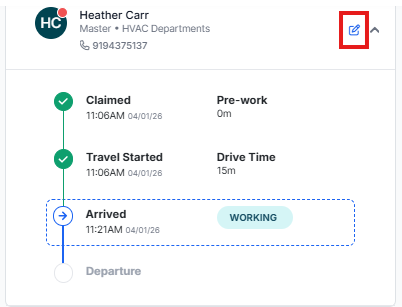
- By clicking the pencil icon per technician, you even have the ability to manually make updates and adjust the technician's time.
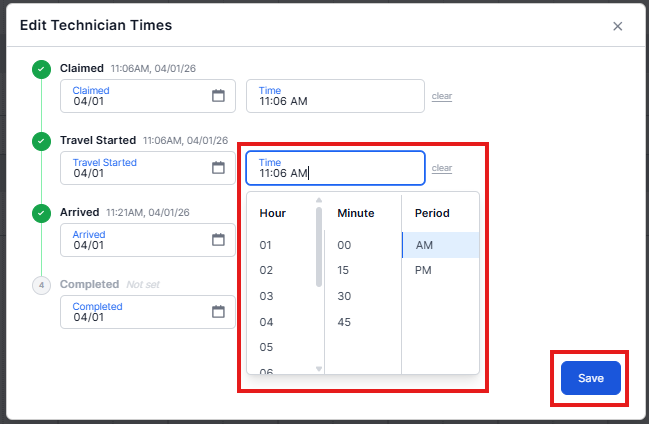
- If a Job was completed by accident from a Technician on the Mobile App, an Admin can remove the completed time from the schedule drawer (or job) and save with a reason, which will then allow the Technician to go back into that appointment (it will pop up on their app as "Return to Appointment").
- Any update in the Tech app is automatically reflected in the Admin Portal. Any update in the Admin Portals is also automatically reflected in the Mobile App.
Multiple Technicians in the Mobile App
-
When you have multiple technicians on an appointment, it means Technicians are all able to build quotes, take photos and videos, update notes, and manage the appointment. It will be important for your Technicians to communicate while on-site, and/or for you to instill standard operating procedures in the event you want certain Technicians leading the job.
- As mentioned, every Technicians will claim the assigned appointment and their time tracking, traveling time, and completion of the job will all track separately. This is important as Techs will all take ownership of the job, and your job time efficiency will be updated based on their individual progress and time(s) tracked within the app today.
- Quotes:
- If one Technician is editing a quote that another Tech may also be viewing or editing, once an edit is made there will be a pop-up notification on the screen to inform the other Technician to ensure there is no conflict.
- Technicians will all be able to see if / when quotes are signed and will have access to see this, or archive the other quotes, and then share the invoice and collect payment.
- There is one opportunity owner, and only the one opportunity owner will get credit for revenue (as reflected in reporting and the leaderboard).
Reporting Updates
-
Appointment List - The Technician(s) column is updated with a link for every Technician on the appointment. The Primary (opportunity owner) is always first, with the additional technicians subsequent. The export is a comma separated list of Technicians.
- Job Times - This report now considers all of the hours the Technicians assigned to the job were working, compared to the actual revenue sold for that job. This is both within the Report and on the Job Times tab within the Job itself.
- Technician Leader Board - As a reminder, the opportunity owner is the first Technician selected when booking the appointment and this is the Technician who receives the revenue credit in all reports and on the leaderboard.
Additional Details
-
How Appointment Status Works
- The appointment's overall status is determined by the most advanced technician's progress:
Situation
Appointment Shows As
No technicians assigned
Pending
Technicians assigned but none have accepted
Assigned
At least one tech accepted
Accepted
At least one tech is traveling
Traveling
Any tech has arrived on site
Running
ALL techs have departed
Completed
- The appointment's overall status is determined by the most advanced technician's progress:
- Work Crews Remain Unchanged
- Work crews are unchanged - they remain attached to their lead technician. When a lead technician is assigned to an appointment, all of their work crew members are automatically added to the appointment once it reaches Accepted status.
- With multi-tech, this works the same way for each assigned technician:
- If Tech A has 2 crew members and Tech B has 1 crew member, all 3 crew members are automatically added when the appointment is accepted.
- On the Job page, crew members are grouped under their lead technician.
- Crew members from techs not on the appointment appear in an "Other Crew" section.
- Removing a technician also removes their crew members from the appointment.
- Notifications
- Customers receive one notification per status change, not one per technician.
- Example: "John Smith and Maria Garcia are on their way" (when traveling).
- Example for 3+ Techs: "John Smith, Maria Garcia, and 1 other technician are on their way."
- The notification fires when the first technician reaches that status.
- Customers receive one notification per status change, not one per technician.
- Revenue Attribution and Leaderboard
- Multi-tech appointments do not change how revenue, opportunity ownership, or leaderboard metrics work.
- How it works today (unchanged):
- The opportunity owner is set to the default technician when the appointment first transitions to Running (first tech arrives on site). It's set once and never overwritten.
- The leaderboard attributes job revenue and opportunity counts to the opportunity owner only. This is unchanged - it uses the same Owner ID field on the job.
- Commissions are manually created by admins on a per-technician basis. There is no automatic splitting of revenue across multiple techs.
- What this means for multi-tech:
- Only the default technician (first one selected) gets leaderboard credit for the job.
- Secondary technicians assigned to the same appointment do not appear in the leaderboard metrics.
- Commissions for secondary techs must be manually added by an admin, same as today.
- How it works today (unchanged):
- Multi-tech appointments do not change how revenue, opportunity ownership, or leaderboard metrics work.
Common Support Scenarios
-
"A Technician can't see their appointment in the app."
- Verify the tech is assigned to the appointment (check the drawer's technician list)
- If they were recently added, they may need to refresh the tech app
- "The appointment says 'Running' but no one is on site."
- Check individual tech statuses in the drawer — one tech may have been marked as "Arrived" prematurely
- The admin can edit that tech's times via the pencil icon to correct it
- "The appointment won't mark as 'Complete'."
- ALL assigned technicians must be marked as departed for the appointment to show "Completed"
- Check the drawer to see which tech(s) haven't been marked complete
- The admin can use the "Complete" status action to complete all remaining techs at once
- "Technician times look wrong after reassignment."
- When a new tech is added to an active appointment, they start with no times (Assigned status)
- They need to progress through the status chain independently
- Existing techs' times are not affected by adding new techs
- "The schedule board shows duplicate appointments."
- This is expected — each assigned tech gets their own clone on the board
- The clones are linked; editing one updates all of them
- "My technician's leaderboard stats aren't updating."
- The leaderboard credits the opportunity owner, which is automatically set to the default technician (first one assigned) when the appointment first goes to Running. Secondary technicians on a multi-tech appointment won't see those jobs in their leaderboard stats.
- This is expected behavior for now. If the customer needs a different tech to get credit, the admin can manually change the opportunity owner on the job.