
What's New & Improved
- Mobile Optimization of the Admin Portal - Admin Tables: We’re excited to share that we have built on the mobile optimization work for the Admin portal and optimized tables. These tables include: Customers, Reports, Billing Tool, Jobs, Pricebook, Quotes, Inventory, Company Settings (communications, tax zones, accounting, discounts), Opportunities, Warranties, Company Vehicles, and Forms and Checklists.
Overview
Admin tables in Sera now fit a phone screen. Instead of a wide grid you have to scroll sideways, each table keeps its most important columns in view and tucks the rest underneath each row. Tap a row to see everything else about it.
Everything you can do on a desktop table still works on a phone: search, filters, sorting, paging, totals, export and selecting rows for a bulk action. The data, the permissions and the desktop layout are unchanged.
When would you use this?
- Looking up a customer’s phone number or address while you are away from your desk.
- Checking a report — jobs, payments, sales tax — for a date range from your phone.
- Reading a report’s totals without turning your phone sideways.
- Charging a batch of invoices from the Billing tool on a tablet.
When you see it. On any screen narrower than 853 pixels — every phone, and most tablets held upright. Turn a tablet sideways, or use a laptop, and you get the full desktop table. The table switches as you rotate; there is nothing to reload.
Who gets it. The phone layout is on for every company and every admin. There is nothing to switch on.
Visual Example
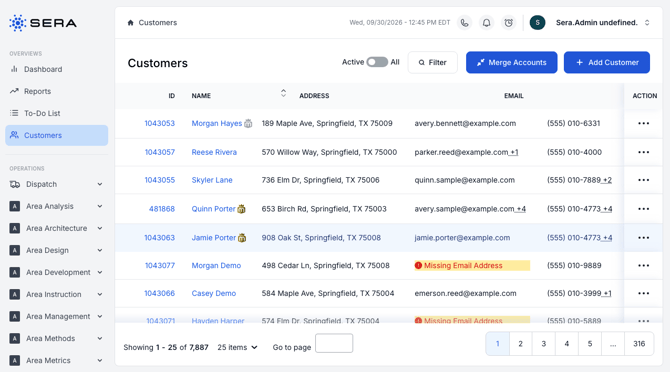
The above image shows the Desktop view of the Customers page.
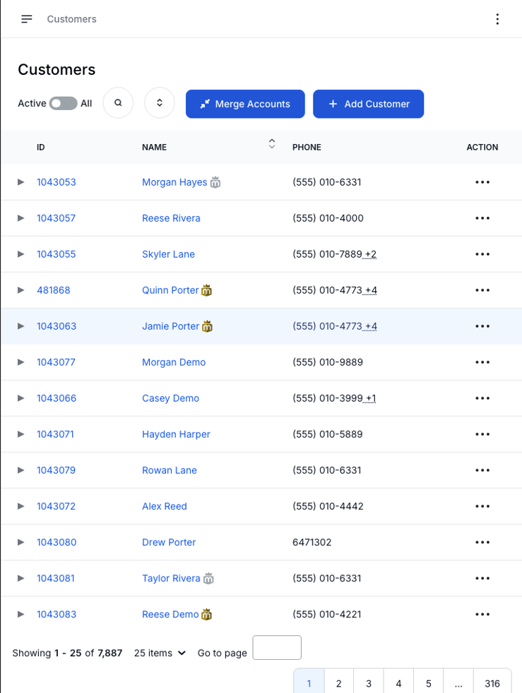
The above shows the optimized Customer page on a Tablet. In this view, the ID, Name and Phone stay along with Actions. There is a small arrow to the left of the ID which folds under the Address, Email, Tags, and Date Added.
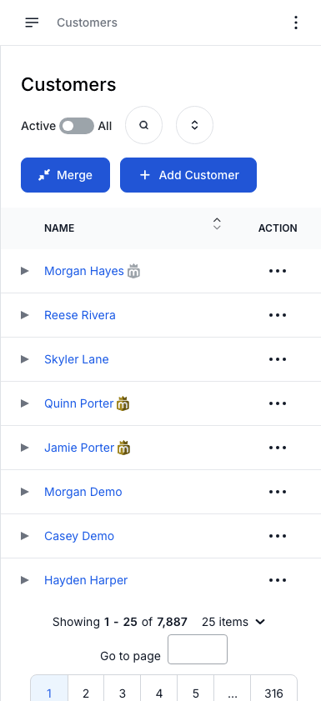
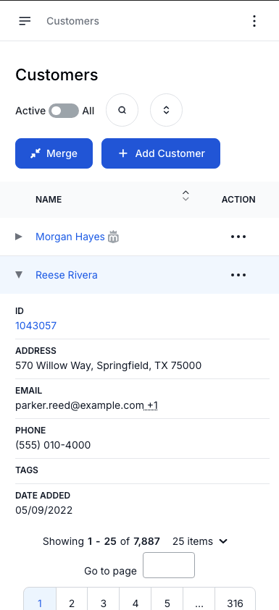
The above shows the optimized Customer page on a mobile device. In this view, the Name and Actions menu stay. There is a small arrow to the left of the Name which folds under the additional data points.
How it Works
Which columns stay on screen
Every table has a set order for which columns to keep as the screen narrows. The narrower the screen, the fewer columns fit, and the rest move under the row.
- The column you look a record up by stays longest — usually a name before an ID.
- The Action column (⋯) never folds away, so the row menu is always one tap away.
- The checkbox column never folds away on tables where you can select rows.
- Next come the columns you act on, then the rest in their usual left-to-right order.
The page scrolls up and down as normal and the column headings stick under the app header. Nothing scrolls sideways.
Opening a row
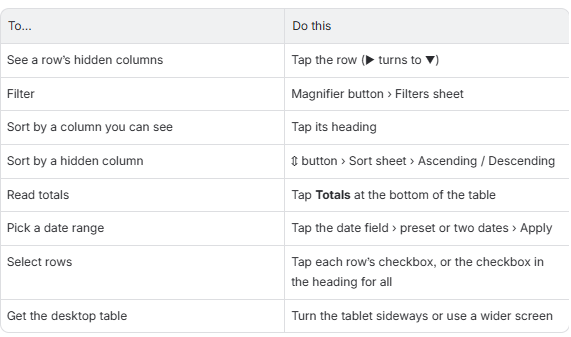
A small ▶ in the first column means the row has more to show. Tap anywhere on the row to open it; the ▶ turns to ▼ and the hidden columns appear underneath, each with its label in small capitals above the value. Tap the row again to close it.
- Links, buttons and menus inside a row still do their own job — tapping a customer’s name opens the customer, it does not open the row.
- Tags, badges and menus work the same inside an open row as they do in a normal cell.
- Long text wraps instead of being cut off.
- On a keyboard, press Enter on a highlighted row to open it.
For example, see the visual below.
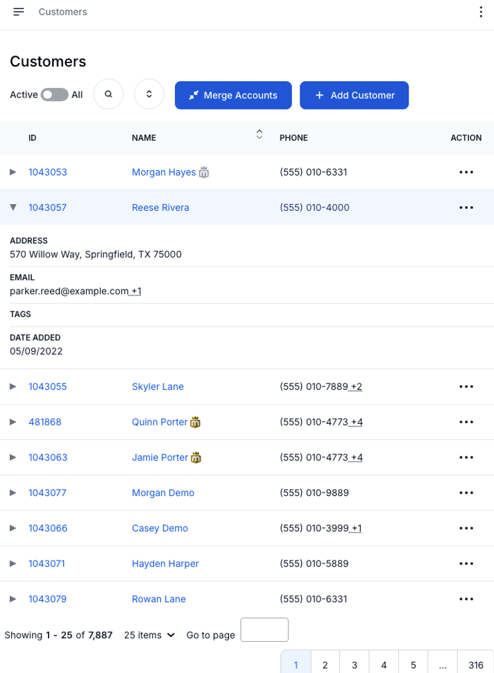
This is the view of the Customer page on a tablet. When you click on the arrow it expands and you see the view below.
Filters
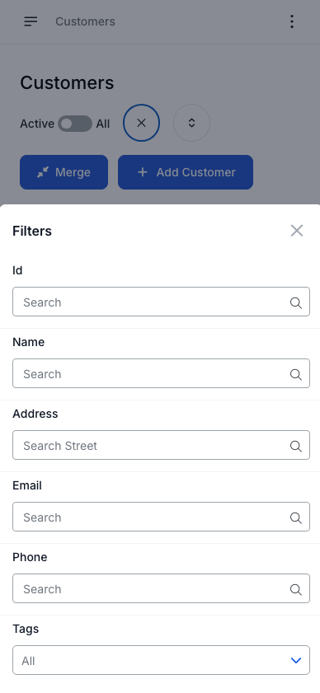
On a desktop, each column’s filter sits in its heading. On a phone those headings may be folded away, so the Filter button (the magnifier) opens a Filters sheet from the bottom of the screen instead. It holds every filter and column search the table has — not just the ones for hidden columns — and a Clear All Filters link.
- Filters you have applied still show as chips under Filtering by, without opening the sheet.
- The number on the Filter button is how many filters are applied.
- A link to a filtered report opens with the same filters on a phone and on a desktop.
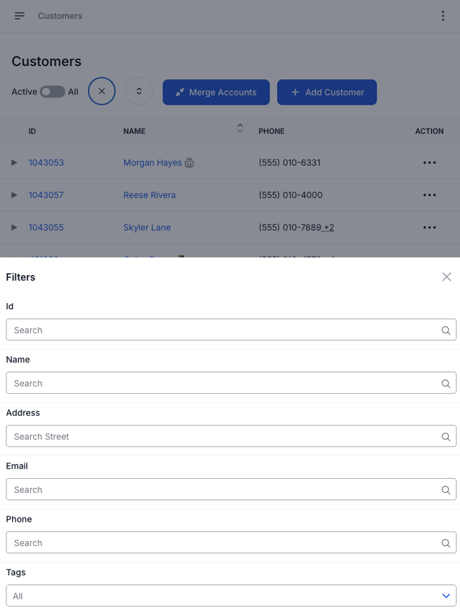
The above is a visual of filtering on a tablet. The below illustrates the visual on a mobile device.
Sort
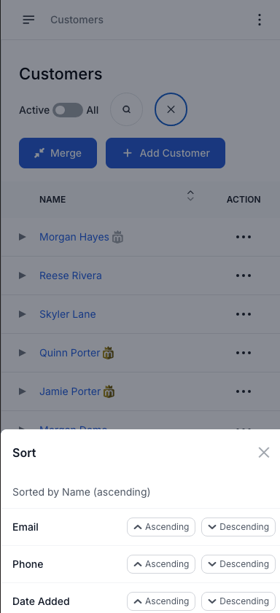
Columns you can still see sort from their heading, as on a desktop. For columns that have folded away, a Sort button (⇕) opens a Sort sheet. It says what the table is sorted by now — for example Sorted by Name (ascending) — and lists each hidden column with Ascending and Descending buttons.
The Sort button only appears when at least one sortable column is hidden. Columns that cannot be sorted are not listed.
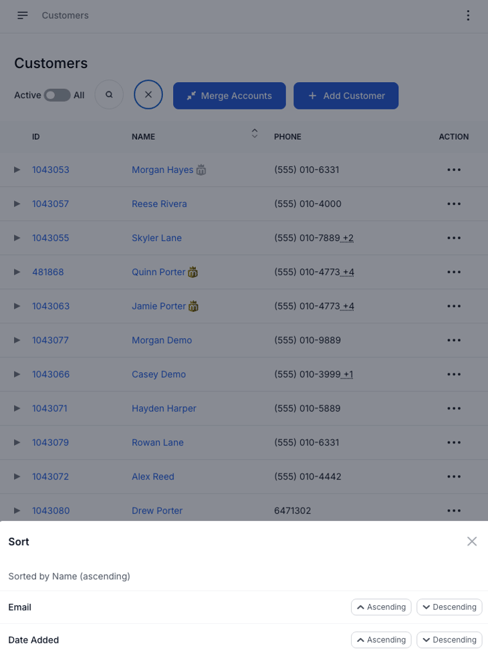
The above shows the sorting options on a tablet while the below is on a mobile device.
Totals
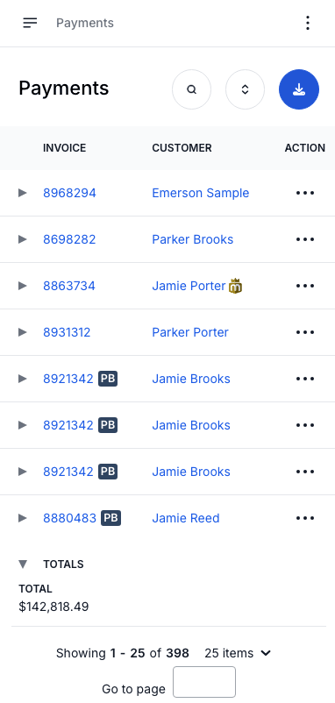
On a desktop, report totals sit in a row at the bottom of the table. On a phone that row would lose the totals for any column that folded away, so the totals move into a Totals panel in the bar at the bottom of the table, above the page count and page buttons.
- The panel starts closed. Tap Totals to open it and see each total as a label and a value.
- The figures are the same as the desktop totals row, and they update when you filter, search or sort.
- A long list of totals scrolls inside the panel so it never covers the whole screen.
- A table with no totals has no Totals panel.
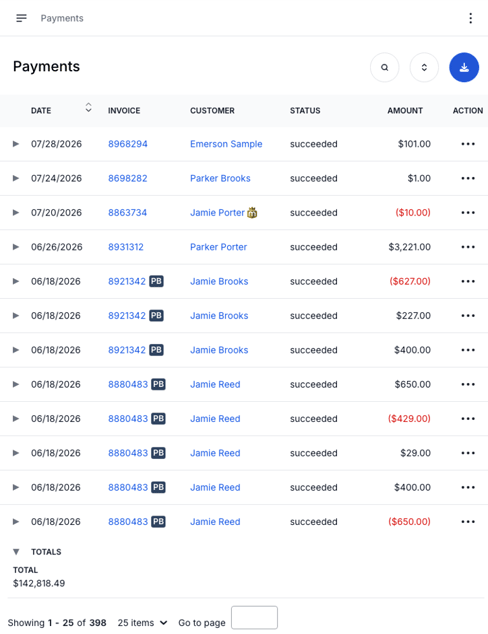
The above shows the totals view on a tablet while the below is on a mobile device.
Selecting rows for a bulk action
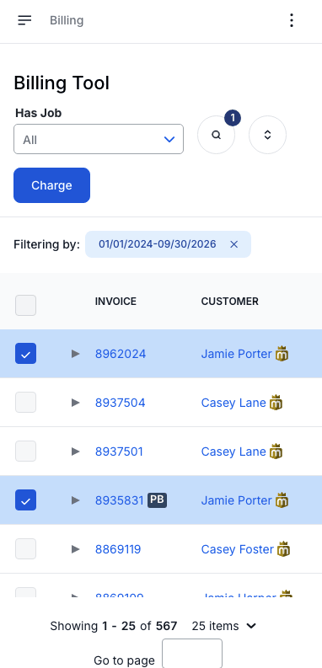
Tables that let you select rows — Billing, Payments, Unbatched invoices and payments, the To-Do List and a customer’s invoices — keep the checkbox column on screen at every width.
- Tap the checkbox to select the row. Tap next to it to open the row instead.
- The checkbox in the heading selects every row, exactly as it does on a desktop.
- Shift-click to select a range, and keeping your selection when you change page, both work the same.
- The page’s own buttons — Charge on Billing, the batch button on Unbatched — stay at the top of the page and act on the rows you selected.
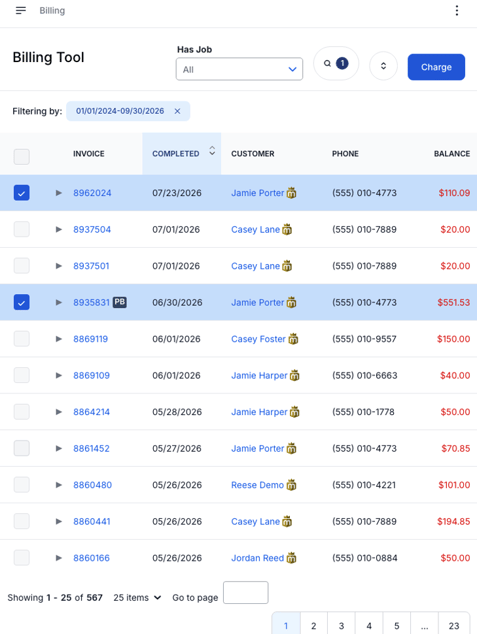
The above shows bulk action on a tablet while the below illustrates this on a mobile device.
Date filters
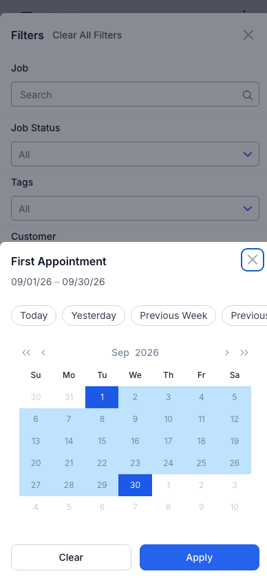
On a phone or upright tablet, tapping a report’s date filter opens a date sheet from the bottom of the screen instead of the small desktop pop-up.
- The range you picked shows at the top of the sheet before you apply it.
- One-tap presets: Today, Yesterday, Previous/Current/Next Week, Month, Quarter and Year, and Previous/Next 30 Days.
- One month at a time, with ‹ and › to move between months.
- Clear and Apply stay at the bottom of the sheet.
- The dates you pick end up in the page address, just as on a desktop, so a shared link keeps the range.
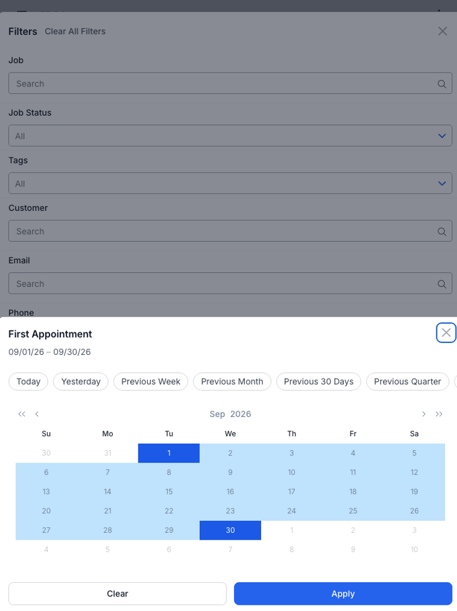
The above shows date filters in action on a tablet while the below image shows it on a mobile device.
Wide reports
The widest reports follow the same rules. The Appointments report has 25 columns; on a phone it keeps the customer and the actions menu, and everything else is one tap away. The Pricebook keeps its category headings, with each task listed under its category. Both are in Appendix B.
Rotating and resizing
- Crossing 853 pixels — for example turning a tablet sideways — rebuilds the table for the new layout. It reloads the current page of rows, and clears any rows you had selected.
- Resizing within a phone width just re-fits the columns; nothing reloads.
Quick reference
Frequently Asked Questions (FAQs)
Why can’t I see a column I use every day?
It has folded under the row because the screen is too narrow. Tap the row to see it, or turn a tablet sideways.
Why is there no Sort button on some tables?
It only appears when a column you can sort by is hidden. If every sortable column is on screen, sort from the headings.
Are the totals on a phone the same as on a desktop?
Yes. They are the same figures, and they follow your filters and search the same way.
I selected some rows and they cleared. Why?
The table was rebuilt because the screen crossed the desktop width — usually from rotating a tablet. Select them again and keep the same orientation.
A table still scrolls sideways on my phone.
Pricebook → Parts still uses the old table until TB-2300 converts it. Tables that are not in Appendix A, such as the tabs on a customer’s or a job’s page, have not moved to the phone layout yet.
Does any of this change the desktop?
No. Above 853 pixels every table looks and works exactly as before.