What's New & Improved
- Zapier Triggers Updated to Accommodate Jobs with Multiple Technicians Assigned: We have updated multiple Zapier triggers to ensure that all technicians assigned to an appointment are sent over via the trigger, instead of just the opportunity owner. This enhancement is a follow-up to the feature we release allowing multiple technicians to be assigned to an appointment. The Zapier triggers updated include: Appointment Created, Appointment Completed, Trip Started, Appointment Rescheduled, and Appointment Cancelled. Each trigger now includes the new technicians list with assigned tech's name, phone, and email.
The original single-technician field is still included, so existing Zaps will continue working. - Ability to Save a Payment Method on File in Customer Portal and Admin Portal (without an Invoice): We have shipped an enhancement per customer request to allow the ability for a Customer to save a payment method on file in the Customer Portal, and the ability for an Admin to save a payment method on file for a Customer, without requiring an invoice. Previously, you could only save a payment method on file if there was an invoice on the Account.
👉 Training Article: Customer Portal - Saving a Payment Method on File
👉 Training Article: Admin Portal - Saving a Payment Method on File - Customer Portal Password Reset Flow Updated: We have made updates to the Forgot Password reset flow for the Customer Portal that works as follows. First, a customer clicks 'Forgot Password' and receives a link via email to reset their password. The password reset link is active for 48-hours before it expires. Once selected, the Customer can reset their password and log directly into the Customer Portal. If the Customer accesses the password reset link and it is expired, the customer will receive messaging that the password reset link is expired and will be redirected to request another link via the same Forgot Password page.
The below visual illustrates the message received and page Customers are redirected to if the password link has expired.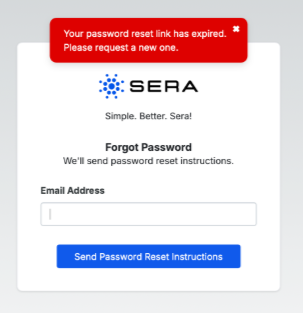
- Ability to Allow Locations on a Customer Profile to be Archived: We have implemented the ability for Clients to Archive Service Addresses within the Customer's profile in the Admin Portal.
To do this, simply locate the Customer's profile, select the 3 dots by the Service Address, and select Archive.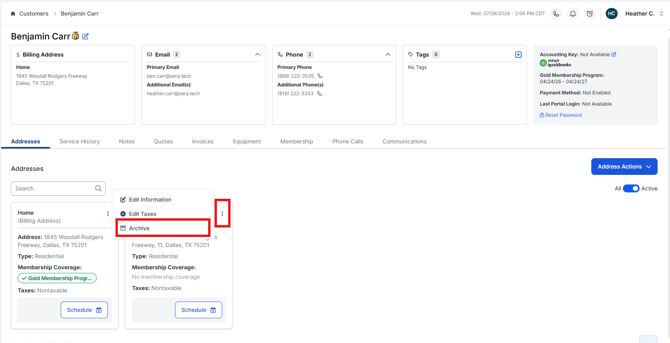
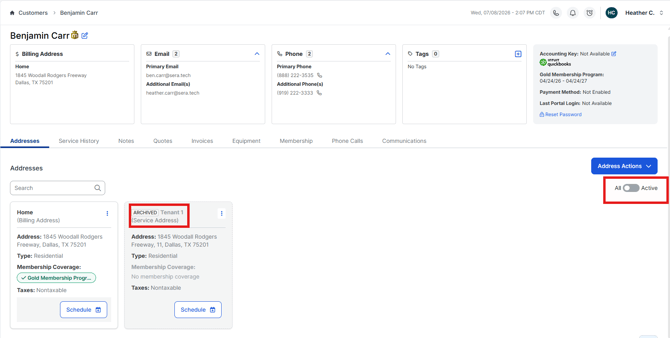
Once you do this, the address will be removed from the screen but you have the ability to toggle and show All Addresses or only Active Addresses, the data is not lost. When you toggle to view All, you'll see the Archived badge and the Archived Address presents itself in a grey box.