What's New & Improved
- Mobile Optimization of the Admin Portal - Schedule Experience: We’re excited to share that we have made enhancements to the Admin Portal experience for users accessing using a mobile device. As you know, the Admin Portal is primarily a desktop experience, but we have spent time optimizing the Schedule / Dispatch board experience for users navigating on a small mobile device.
- This is specifically for mobile cell phones accessing the Admin Portal (or devices with a screen narrower than 853 pixels). This is essentially every phone and many tablets (for tablets, only if they are held upright). For screens greater than 853 pixels, the existing experience is maintained. This includes when accessing via desktop.
Overview
The Sera admin portal now has a layout built for a phone screen. Two things change when it is on:
- The app header shrinks to a single row, so the page you came to work on starts near the top of the screen instead of below two bands of chrome.
- The Schedule becomes a phone-shaped board — one row telling you whose schedule you are looking at, one row for the date, and a calendar you can work with one thumb.
Everything else is the same Sera. The same appointments, the same permissions, the same data. Nothing about the desktop experience changes.
How to Use
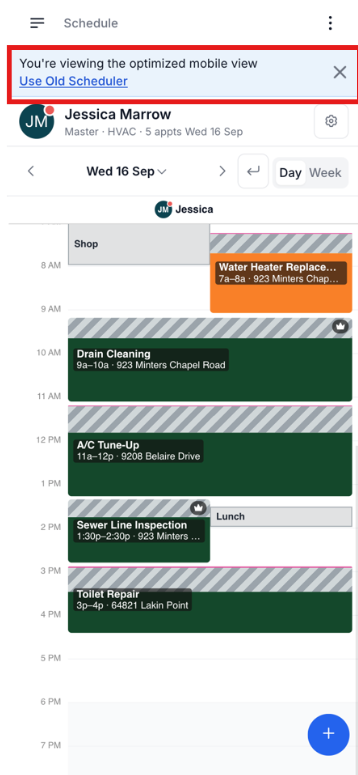
Ability to Opt-Out of the New Experience: We understand that not everyone will want to switch to a new view. That's ok! We're giving you the option. When you log in for the first time, you'll have the ability to switch the old scheduler view. Each time you login after, this option will be available via the Settings icon.
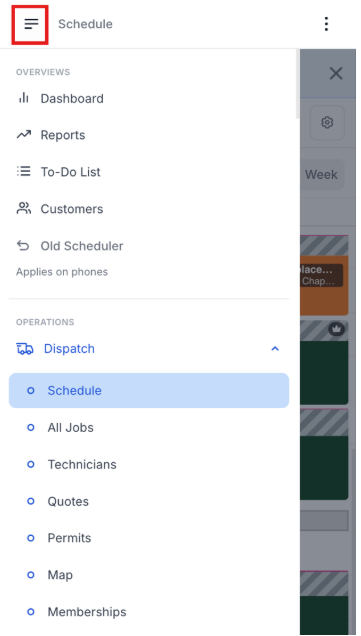
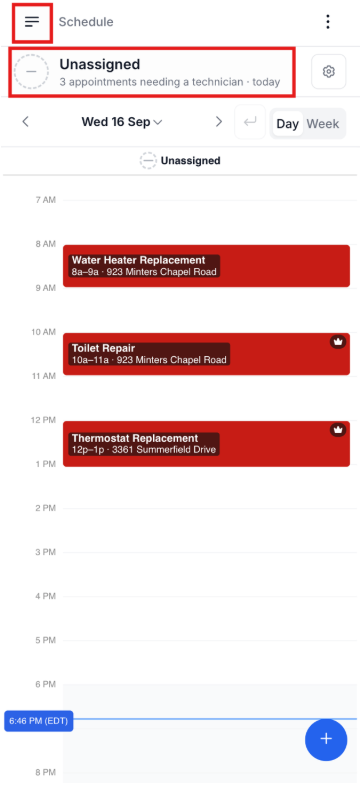
Hamburger Icon: Once you login, you can access all areas of the Admin Portal via the hamburger icon, located in the top left corner. Click here to be able to access other areas including the dashboard, reports, etc.
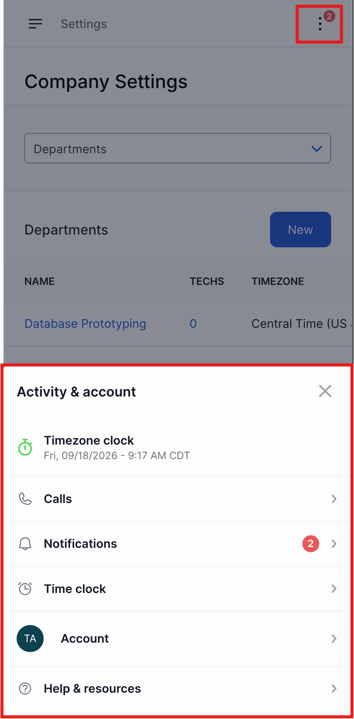
Accessing Activity & Account Details: In the Header, the 3 dots on the right side open the Activity & Account section. There are different badges that can be displayed on the 3 dots.
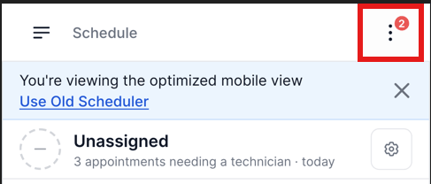
- A red number is how many tasks are waiting for you.
- A plain red dot means there is something to look at — an unread notification, or a call that needs attention.
- No badge means nothing is waiting.
Tapping the 3 dots slides up a sheet from the bottom of your device which has 6 rows, providing you access to the following:
- Timezone Clock - The current date and time in your company's timezone, ticking.
- Calls - The caller's name and a running timer while you are on a call, a "2 unclaimed calls" when calls are waiting. A red badge means a call you claimed; blue means unclaimed.
- Notifications - A red count of tasks waiting for you, or a red dot when something is unread.
- Time Clock - A running timer while you are clocked in.
- Account - Your avatar.
- Help & Resources - Access to the Help Center.
Logging in via your Mobile Device: You'll be prompted to a view of the Schedule Board. The Default View of the Schedule Board shows you all Unassigned jobs for the day.
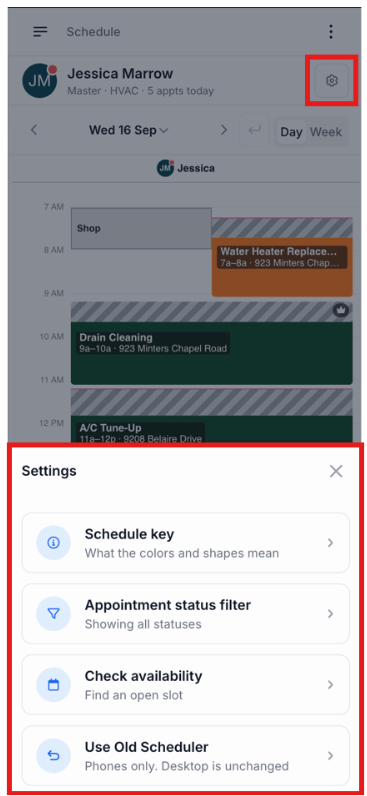
Accessing Settings: The Settings icon, located on the right side of the screen, opens a Setting page giving you the Schedule key, the ability to filter by appointment status, the ability to check availability, and the choice to swap back to the old scheduler view.
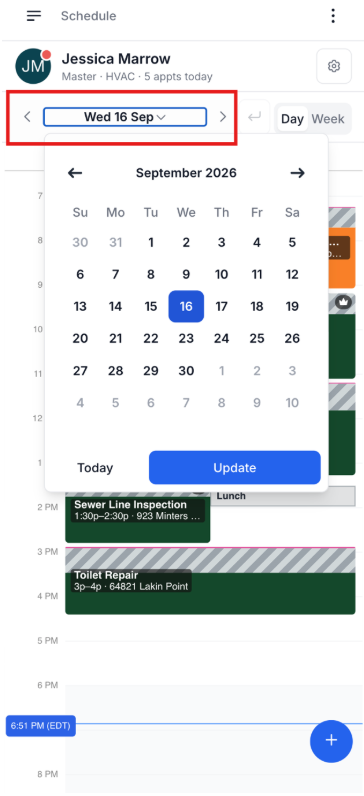
Navigation and Date Selection: Changing a date is much easier in this new view. Simply select the date icon and a calendar will pop up, allowing you to update the view to a past or future date of your choice.
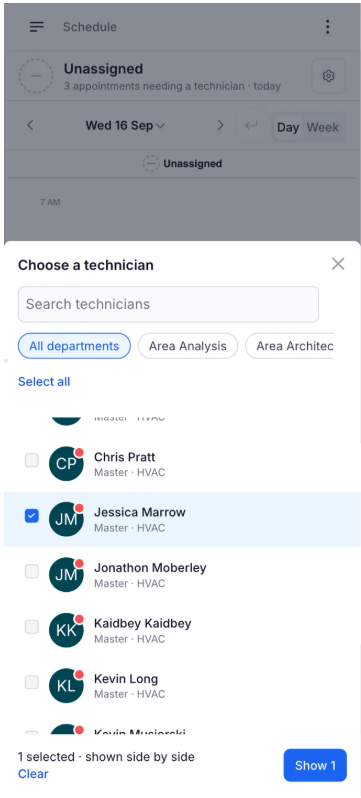
Technician Selection: Tapping the schedule row opens Choose a Technician.
- Search by technician name or department. While you are typing the department headings drop away and you just see matches.
- Department chips run across the top. "All departments" is selected to start with. Picking one hides the other departments and the Unassigned row.
- Select all ticks everything currently listed; tap again to clear it.
- Unassigned is always first, with a dashed circle and a count of appointments needing a technician.
- Everyone else is grouped under their department.
- Each row carries a checkbox, a photo or initials with the clocked-in dot, a name, and their level and department. Rows you have picked are tinted.
Nothing happens to the board until you apply. As soon as you change the selection a footer appears: "3 selected · shown side by side", a Clear link, and a Show 3 button whose number keeps up with what you tick. Show 3 applies it, closes the sheet, and updates the row at the top.
Reading the Board
Columns
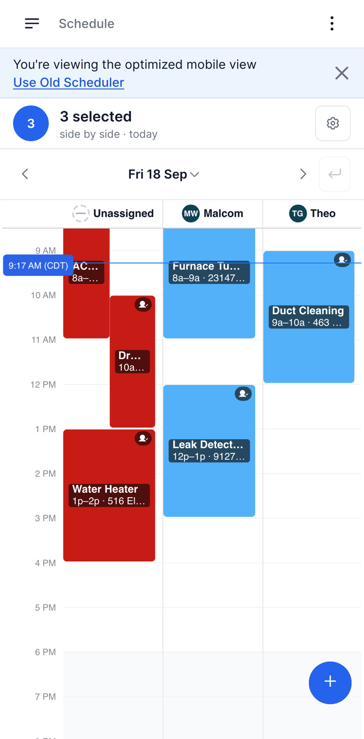
Every schedule you picked gets its own column, side by side, sharing one time axis and one current-time line. Unassigned is a column like any other, not a separate list. Each column is headed with the technician's photo and first name.
Where two appointments overlap in the same column, the later one shifts right and the earlier one keeps the left edge, so you can see both.
Appointment Cards
A card is filled solid with its status color. Over that sits a dark band carrying the job type in bold and, beneath it, the time and the street — for example AC Repair, "9a–10a · 79126 Ryan Burg".
A card covers the arrival window or the work that actually happened, whichever is longer, and never less than fifteen minutes. Inside it you can read the shape of the trip: the pre-work bar, the travel or late stripe, then the work itself.
Short cards show less. A very short card is only its color. As it gets taller it gains the job type, and taller still it gains the time and address. A fifteen-minute job is a color; an hour-long one is a full card.
Icons sit at the top right when they apply — a person for booked by the customer, a padlock for pinned to that technician, a crown for a membership customer. When none of them applies, nothing is drawn there.
Everything that is NOT an Appointment
-
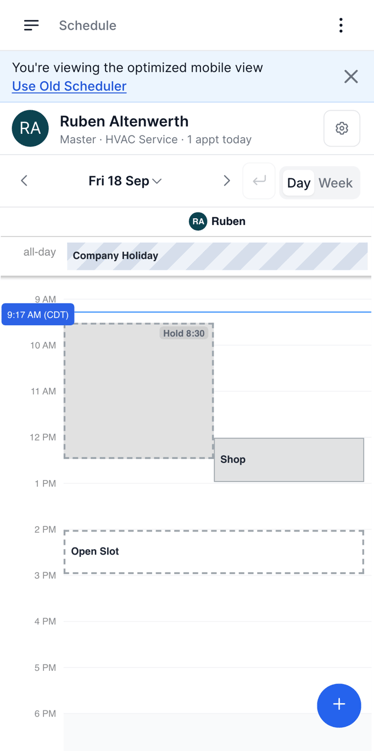
Travel Time - A grey diagonal stripe.
- Late - A yellow diagonal stripe.
- Hold - Dashed grey, with a "Hold 8:30" chip in the corner naming the time it is holding.
- Event - Available - White with a dashed border.
- Event - Unavailable - Grey with a solid border.
- All-Day Event - It's own strip across the top of the board, above the hours.
Visuals - Selecting One or More Technicians
Single Technician Schedule Board View: The below is a preview of what the board will look like when you have selected one (1) single Technician.
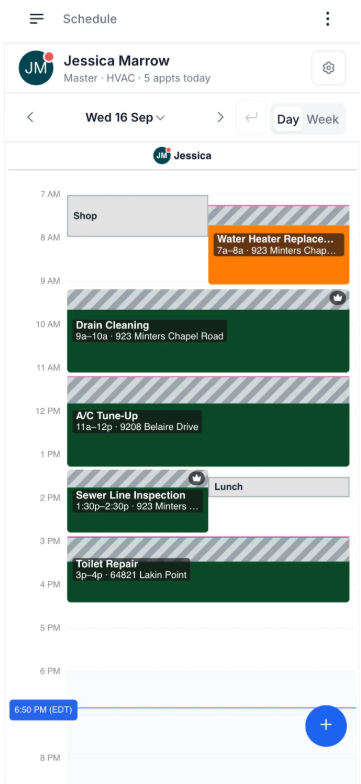
Unassigned + One Single Technician Schedule Board View: The below is a preview of what the board will look like when you have selected one (1) single Technician and the Unassigned jobs.
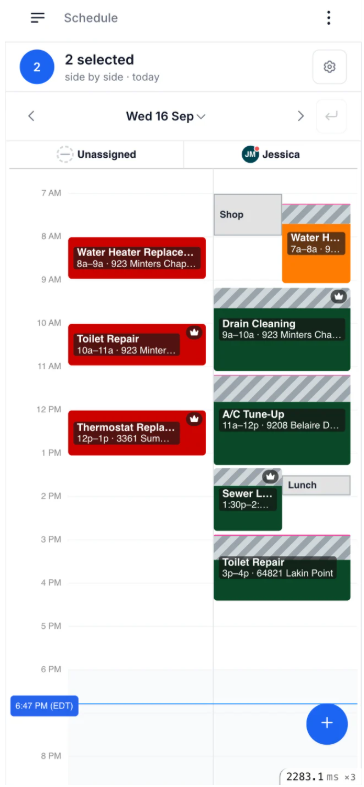
Two Technicians Schedule Board View: The below is a preview of what the board will look like when you have selected two (2) technicians to view at a time.
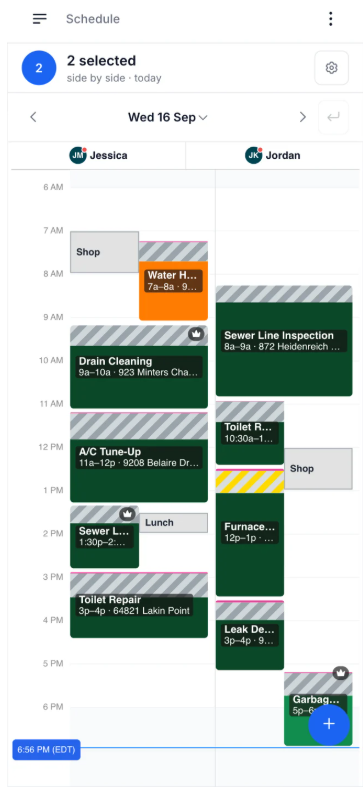
Working From the Board
Open an Appointment
Tap any card. Its details slide up from the bottom of the screen with the same content the desktop drawer has, including the notify-the-customer toggle when you reschedule. Swipe down or tap outside to close. If anything changed while you had it open, the board refreshes as it closes.
Tapping a calendar event opens that event's details the same way.
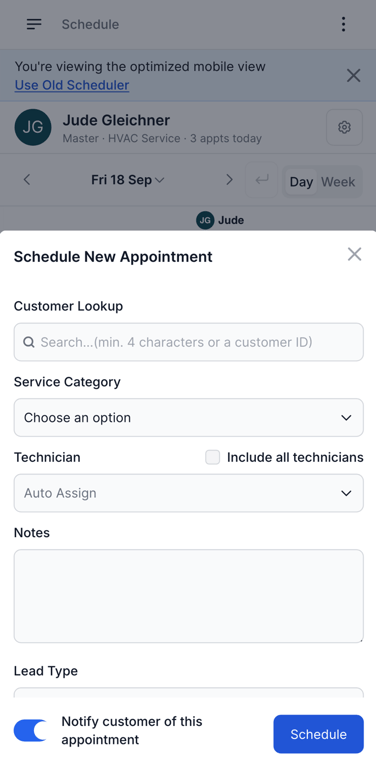
Book an Appointment
Two ways in, both landing in the same sheet:
- Tap an empty slot. The time comes prefilled, and in a technician's column so does the technician.
- Tap the + button, bottom right. The date comes prefilled and you pick the time.
There is no dragging on a phone. Every change goes through a sheet, deliberately — a drag is too easy to start by accident on a touch screen.
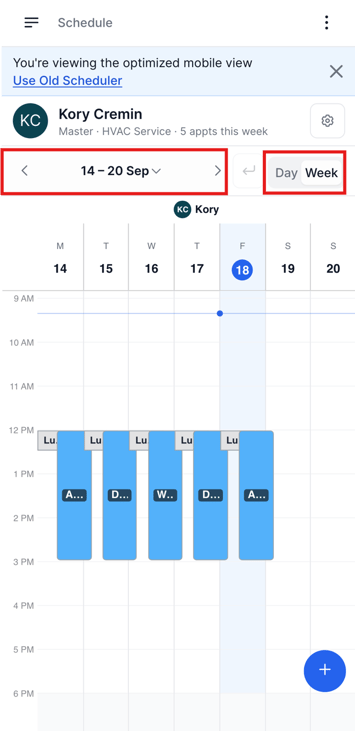
Week View
Week view answers "where does the work pile up this week?" without stepping through seven days.
- It is available when you are viewing Unassigned only or exactly one technician. With two or more showing there is no single timeline to draw, so the Day / Week switch is hidden.
- Seven columns, Monday to Sunday, each headed with the day's letter over its date. Today's date sits in a filled disc and its column is tinted.
- The current-time line shows as a dot on today and fades across the other days.
- The arrows move a week at a time, the title names the range — "14 – 20 Sep" — and the schedule row's summary reads "this week".
- Cards are the narrow version of the same card: the status colour and as much of the job type as fits. The time is not repeated, because the grid's vertical axis is the time, and there is no room for the address. A hold shows a plain Hold chip rather than the time it is holding.
- A week column is only a seventh of the screen, so overlapping jobs cannot sit side by side as they do in Day view. The later one rides on top instead, offset just enough that the earlier card's colour still shows down its left edge.
- Tapping a card opens the same details sheet.