Overview
The integration between RingCentral and Sera allows admins to:
-
Link calls to customers and jobs
-
Track revenue associated with calls
-
Reduce manual effort during customer interactions
Call data is provided by RingCentral, and Sera organizes, links, and reports on that activity within the platform.
Before You Begin
Make sure you have the following:
-
You are logged into RingCentral as an admin
-
You have admin access in Sera
-
You have the Sera App Key required during setup
Step 1: Generate a JWT Token in RingCentral
-
Log in to your RingCentral account as an admin
-
Navigate to the RingCentral Developer Portal
-
In the top-right corner, click your username
-
Select Credentials
-
In the Credentials section, create a new JWT token
- Under Label, type in Sera Systems
- Check the box that states "Only specific apps of my choice" and then enter the following Sera App Key
2HftOTigF9MdP2slDXdjVPAfter the token is generated:
-
Click Click to see
-
Copy the full JWT token
⚠️ Important: Copy the token immediately. You may not be able to view it again later.
Step 2: Add the Token in Sera
-
Log in to Sera as an admin
-
Navigate to: Company → Marketplace
-
-
Locate the RingCentral integration
-
Click Setup Information
-
Paste the JWT token
-
Click Save
-
Once saved, Sera will begin receiving call data from RingCentral.
Notes & Best Practices
-
The JWT token authenticates Sera’s access to RingCentral call data
-
If the token expires or is revoked, the integration must be reconfigured with a new token
-
Only admin users should configure or update this setup
Using the RingCentral Integration in Sera
👉 To see the Ring Central Integration in action CLICK HERE!
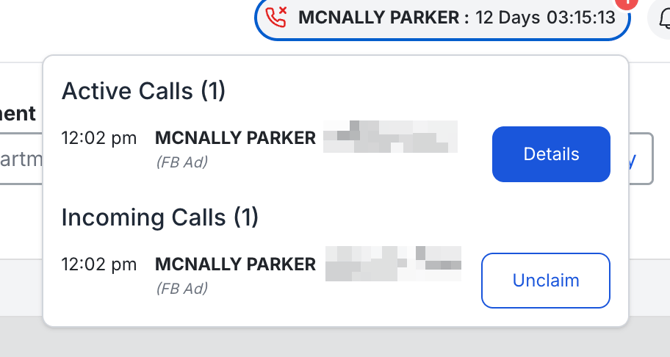
Incoming Calls
When a call is received and answered in RingCentral:
-
The phone icon in the Sera Admin Portal header turns blue
-
Hover over the icon to open the Incoming Calls list
-
Click Claim to claim the call
Active Sessions
After claiming a call:
-
The call appears as an Active Session at the top of the Admin Portal
-
Each claimed call creates a separate session
-
Users can have multiple sessions open simultaneously
-
Only the user who claims the call can see that session
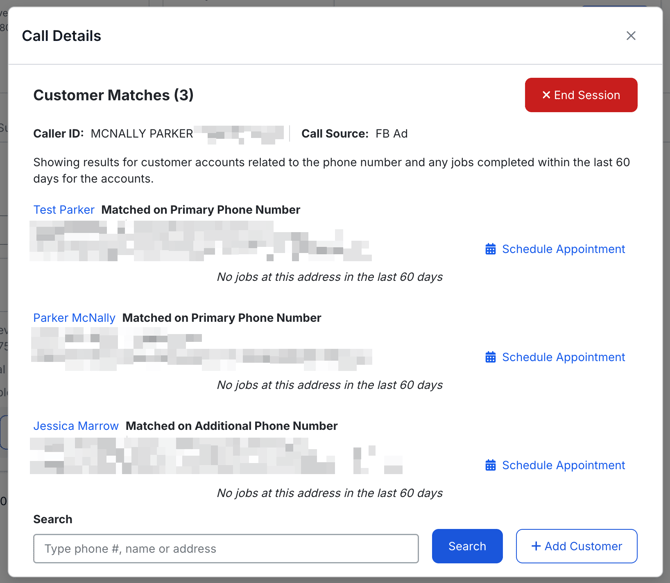
The Active Call window shows:
-
Call information from RingCentral
-
Customer search results using phone numbers
-
Customer contact information
-
Appointments completed in the last 60 days
From this window you can:
-
View the customer account
-
Add a new customer
-
Schedule a new appointment
Scheduling Appointments from a Call
Existing Customer
-
From the Active Session, click Schedule Appointment
-
Complete the booking flow
-
Select the call as the Booking Call
This ensures revenue attribution for the call.
New Customer
-
From the Active Session, click Add Customer
-
Enter the customer details
-
Click Save Customer & Schedule Appointment
Ending a Call Session
After finishing work related to the call:
-
End the call in RingCentral
-
Click End Session in the Sera Active Session
Linking Calls to Customers and Jobs
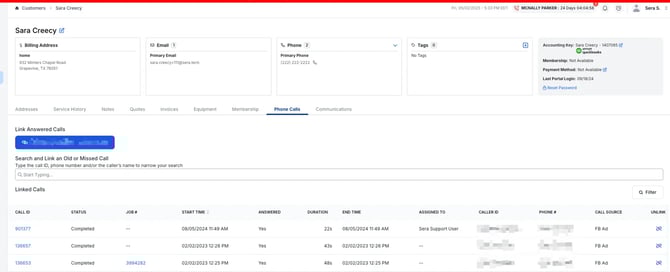
Phone Calls Tab
The Phone Calls tab appears on:
-
Customer records
-
Job records
From this tab you can:
-
Link active calls
-
Link past or missed calls
-
Review previously linked calls
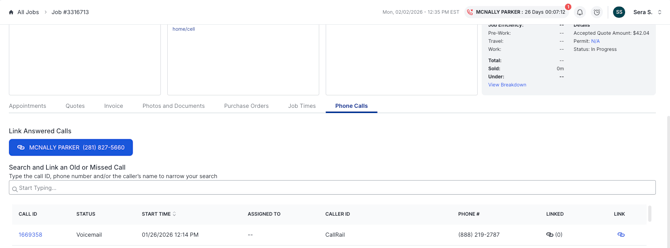
Linking an Active Call to a Job
-
Open the Job record
-
Navigate to the Phone Calls tab
-
Click Link Answered Calls
The call will now be associated with the job.
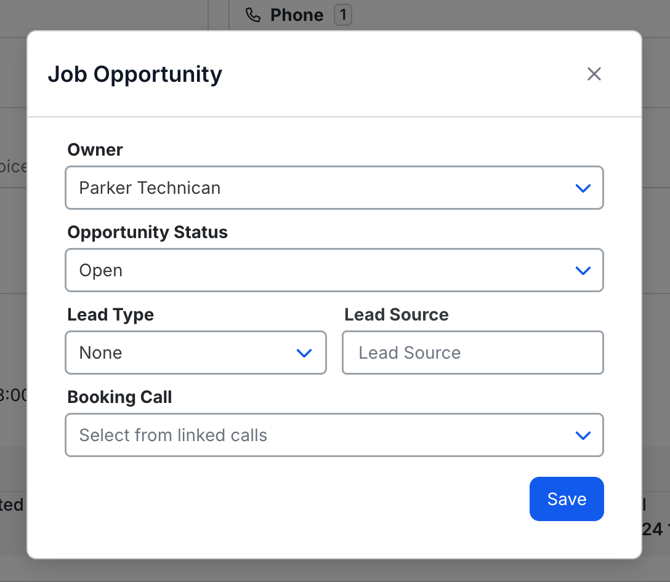
If scheduling during the call:
-
Select the linked call in the Booking Call dropdown
This ensures revenue is attributed correctly in the Incoming Calls Report.
Linking a Past or Missed Call
-
Open the Job record
-
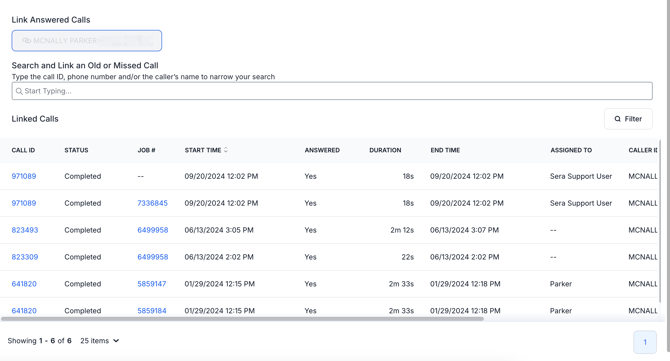
Navigate to:
Phone Calls → Search and Link an Old or Missed Call
-
Search by:
-
Call ID
-
Phone number
-
Customer name
-
Click the link icon
The call will now be associated with the job.
Linked calls appear in the Linked Calls table.
Call Details
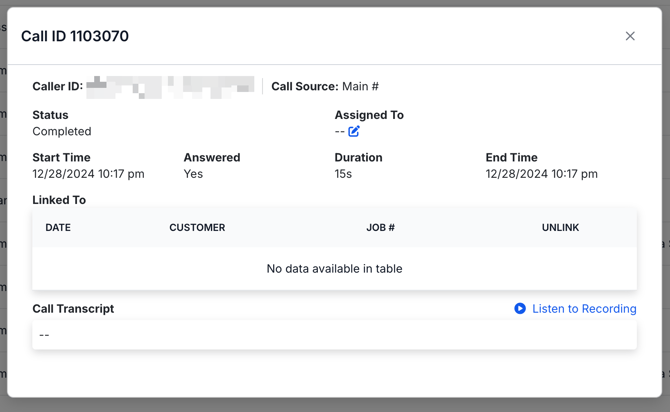
Clicking a Call ID displays:
-
Caller ID
-
Call start and end time
-
Answered status and duration
-
Linked customers and jobs
-
Audio recording (if available)
-
Transcript (not available for RingCentral)
From this screen you can:
-
Change the office representative who claimed the call
-
Unlink calls
-
Navigate to linked jobs
-
Listen to recordings
Incoming Calls Report
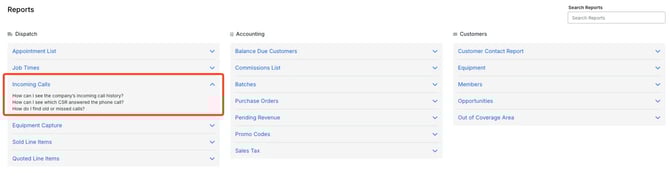
The Incoming Calls Report becomes available when the RingCentral integration is enabled.
It allows admins to track incoming calls, customer/job linking, and revenue attribution.
What the Report Shows
-
Call ID
-
Call status and start time
-
Answered status and duration
-
Caller ID and phone number
-
Call source
-
Linked customer and job
-
Revenue associated with the job
-
Call notes
Users can:
-
Filter columns
-
Export report data
Linking Past Calls
Calls can be linked from:
Job → Phone Calls tab
Active call
-
Link the active session directly to the job
Past call
-
Search by phone number, Call ID, or caller name
Once linked:
-
The Incoming Calls Report updates automatically
-
If it was the booking call, the job opportunity can be updated