What’s New
Technicians can:
-
Navigate to the Customer details and locate one Media & Docs tab which houses all photos, videos, documents, and phone calls. These items were previously only visible inside the individual job appointment screens, so this feature enables a Technician to see a customer's full asset history in one place.
How It Works
This feature is automatically enabled as a native feature within Sera.
Be sure you are using the latest version of the Mobile App.
As we consistently improve aspects of the Mobile App, if there is a new version, upon logging in you'll be prompted to refresh the app. This is as simple as closing / logging out and back in. You'll always want to be on the most current version of the app.
The functionality is very user friendly.
- First, locate a Customer record from the mobile application.
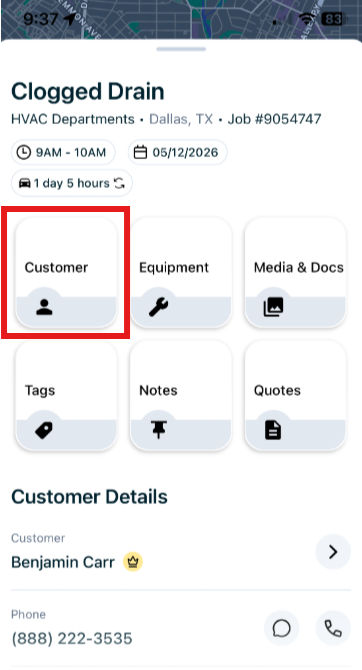
- Next, scroll across the top and notice one Media & Docs tab. Here, you'll see sub-tabs for Photos, Videos, Docs, and Phone Calls.
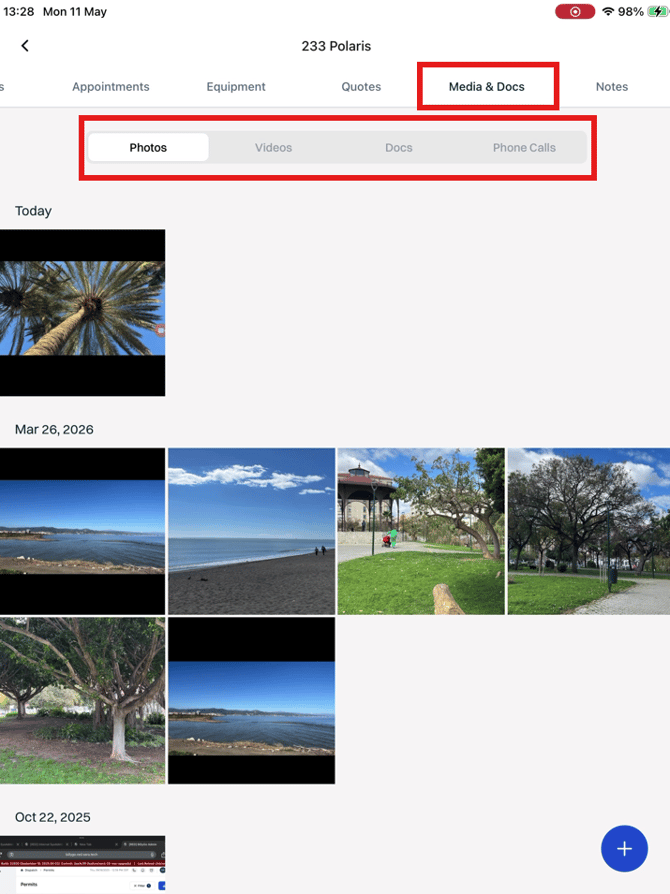
- Within each sub-tab (Photos, Videos, Docs, and Phone Calls), you will see all media across every appointment for this organized organized by date.
- For Photos, Videos, and Docs, you can use the "+" icon to add items and link them to a past appointment.
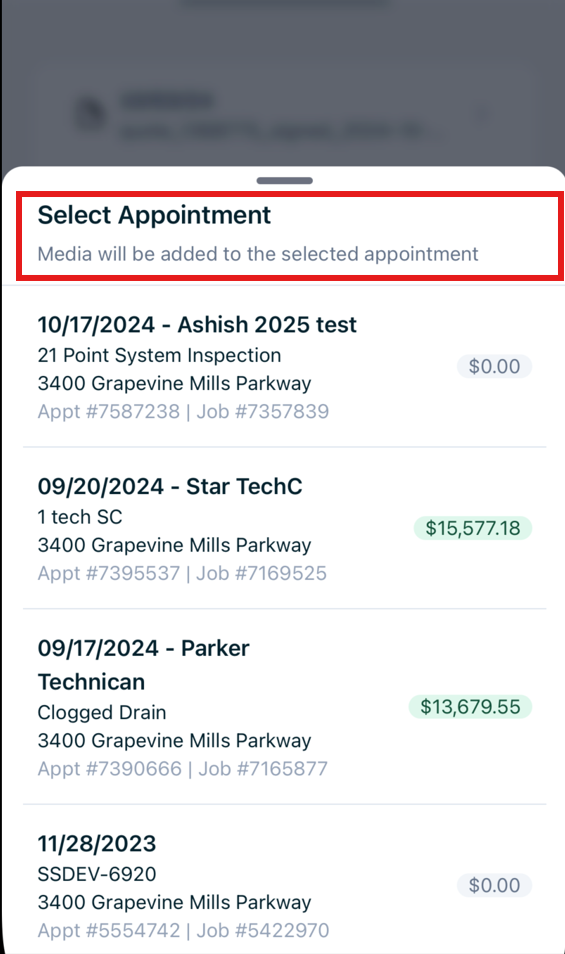
- When you select the"+" icon, you'll be prompted to select the appointment you'd like the media tagged to. You can scroll to locate the appointment then identify the appropriate photo, video, or document you'd like to upload and attach.