What’s New
Admin can:
- View, add, and edit captions on media from the Admin Portal. Technicians can add these as well in the Mobile App. A training article on how they can do this is found below.
👉Training Article: Mobile App: Adding, Editing, and Viewing Captions on Media
Customers can:
- See all media from the Customer Portal and view captions if they have been applied.
How It Works
From the Admin Portal, locate a Job (from the Customer Portal or from a Job page directly).
Within the Media & Docs tabs, any media with captions loaded are denoted by a caption icon.
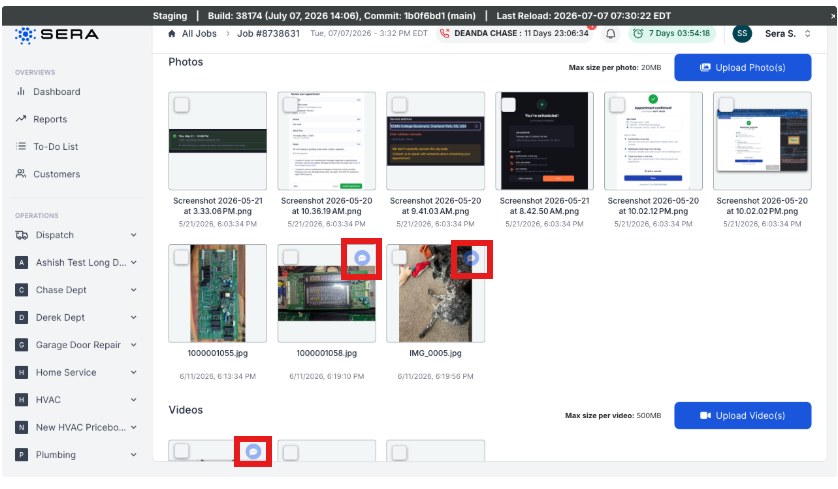
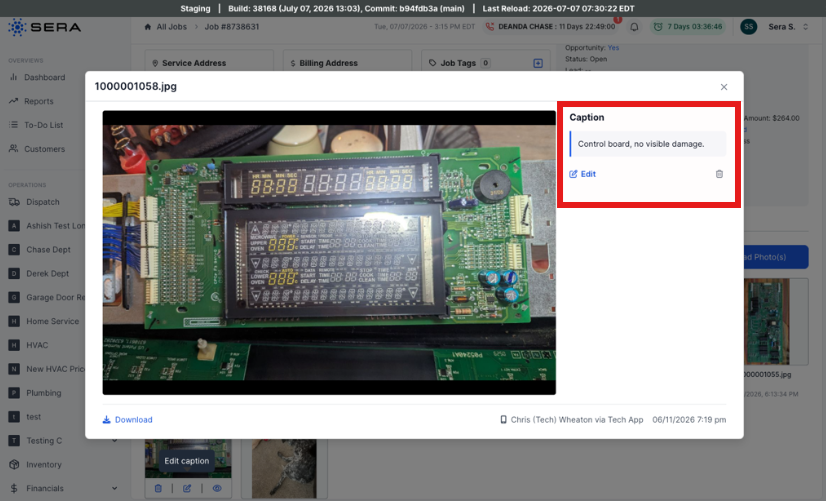
By clicking into the caption icon, you will see an in-line caption editor where you can view and/or edit the caption.
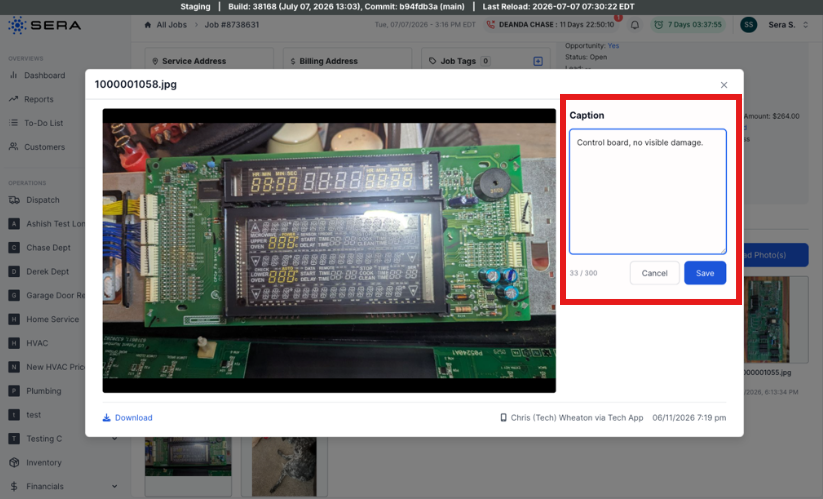
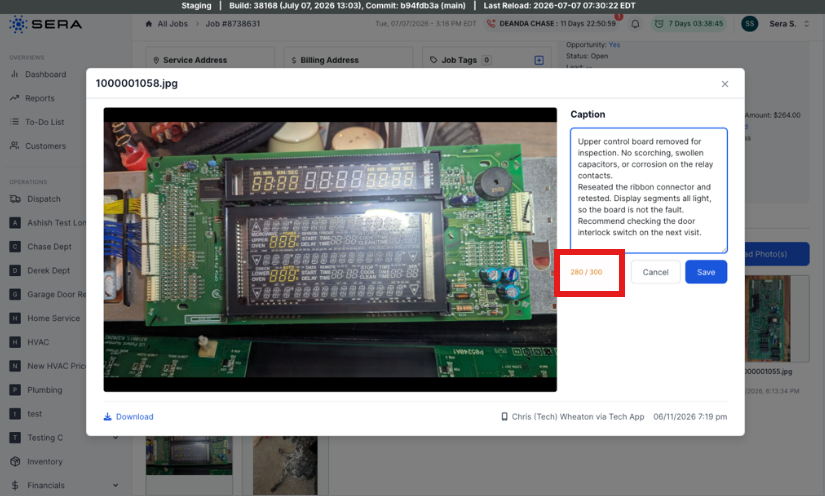
There is a 300 character limit, and you will receive a character limit warning with the quantities of characters changing as you type and turning amber.
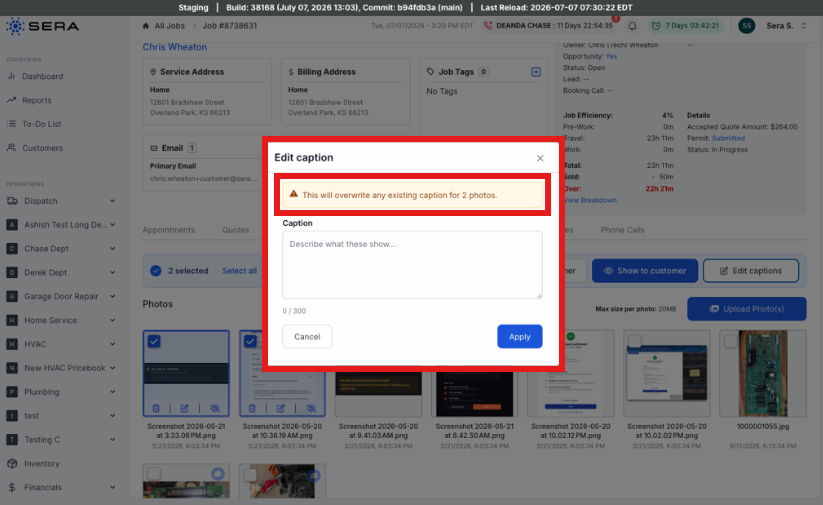
You can bulk edit captions by selection 2 or more items and selecting Edit Captions. A modal will open and this will apply one shared caption across multiple photos. If you are at risk of overwriting an existing caption, a warning will present itself.